
- Training
- Service
- Promotion
- Schedule
- Testing Center
- News
- Contact
4/6/2020


Schedule a meeting in Teams
| Desktop | Mobile |
Desktop
Your calendar in Teams is connected to your Exchange calendar. In other words, when you schedule a meeting in Outlook, it'll show up in Teams, and vice versa.
Every meeting scheduled in Teams is automatically made into an online meeting. Scheduling from Outlook? Learn how to add Teams to your Outlook meeting.
Schedule a meeting
There are several ways to schedule a meeting in Teams:
 in a chat (below the box where you type a new message) to book a meeting with the people in the chat.
 on the left side of the app and select New meeting in the top right corner.
The scheduling form is where you'll give your meeting a title, invite people, and add meeting details. Use the Scheduling Assistant to find a time that works for everyone.
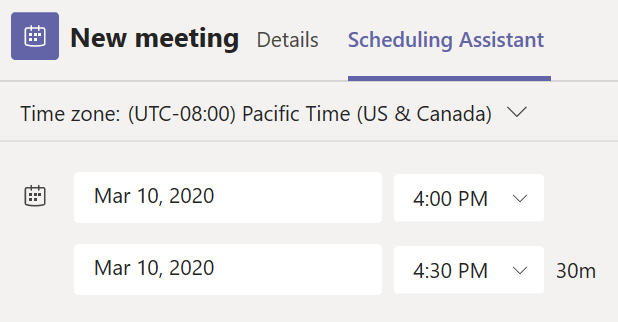
Once you're done filling out the details, select Save. This will close the scheduling form and send an invite to everyone's Outlook inbox.
Invite people outside your organization
Teams lets you invite people outside your organization, including those who don't have a Teams license. You'll need their full email address to invite them.
Make it a channel meeting
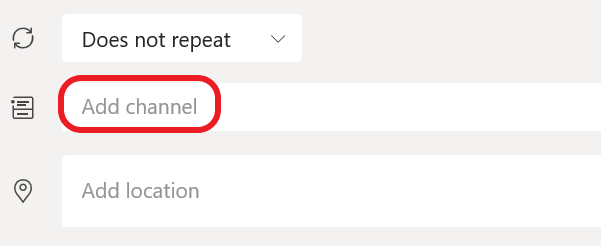
Channels can't be edited or added once the invite is sent. You'll need to send a new invite with the updated channels.
Note: When you have a meeting in a channel, everyone in the team will be able to see it and join it in that channel.
Once you've added the people you want, select Scheduling Assistant to find the best time.
If it's a recurring meeting, open the dropdown menu next to Does not repeat (just below the date). Choose how often you want it to occur from the default options, or select Custom to create your own cadence.
Change the calendar view
By default, you'll be shown your work week and can be changed from the dropdown menu at the top right of your calendar. Here are your current view options:
In the top left corner you'll find the month and year. Select the month to change your calendar view to any date— past or future. Select the arrows next to the month to scroll by day or week depending on your calendar view.
Select Today to get back to the current date.
Note: The calendar shows you everything that was scheduled in Teams, Exchange, or Outlook.
Right-click for more options
Right-click an event in your calendar to RSVP, remove it if it's canceled, or open the invitation to view the meeting details. If the event is a Teams meeting, you'll also get options to Join online and Chat with participants.
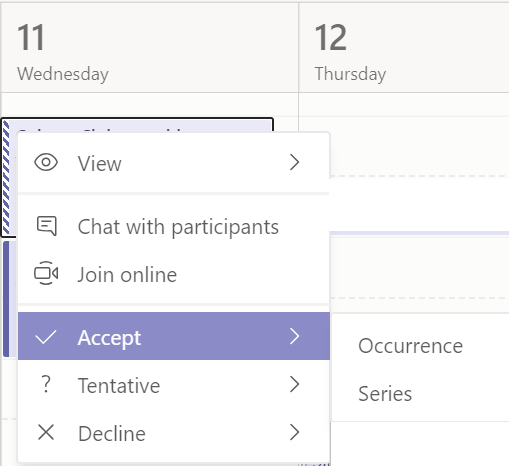
Teams meetings will show a join button on an event in your calendar five minutes before the start of a meeting. Once someone joins the meeting, the event will change colors to let you know they're online.
Select Join to open the meeting settings window to confirm your preferred camera and mic settings before joining the online meeting.
Note: If you have overlapping meetings in your calendar, the join button won't be available. But you can still right-click the event and select Join online.
Mobile
To schedule a meeting, go to Calendar  on the bottom of the app, then select Schedule a meeting
  in the top right.
Go to Add participants  and select the people you'd like to invite.
Next, go to Share to a channel:
Note: When you have a meeting in a channel, people will be able to see and join it in that channel.
Then, set start and end times and write a description for the event.
Finally, select Done to schedule your meeting.
Join a meeting in Teams
| Desktop | Mobile |
Desktop
Join Teams meetings anytime, anywhere, from any device.
Teams meetings are best when you join them from the Teams app or Teams on the web, and there's a bunch of ways to do that—read on for details about joining by link, from your calendar, and more. If you can't use the app or the web, some meetings let you call in using a phone number.
In this article
To learn more, check out the Join a Teams meeting video.
Join by link
All you need to join a Teams meeting is a link.

Select Join Microsoft Teams Meeting in your meeting invite to be taken to a page where you can choose to either join on the web or download the desktop app. If you already have the Teams app, the meeting will open there automatically.
If you don’t have a Teams account and the organizer has allowed it, you may have the option to enter your name to join the meeting as a guest. If you do have a Teams account, select Sign in to join with access to the meeting chat and more. Then, depending on the organizer’s settings, you may join the meeting right away or go to the lobby where people in the meeting can admit you.
Join from calendar
Select Calendar  on the left side of the app to see your meetings. Find the meeting you want, and then select Join.

Or, if someone starts the meeting, you'll get a notification you can use to join.
Join in a channel
If a meeting takes place in a channel, you’ll see an invitation to join, relevant content, and who’s in the meeting right in the channel. Just select Join.
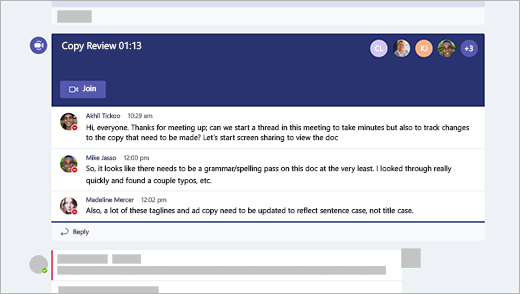
Join from chat
If the meeting has already begun, it appears in your recent chat list. Select the meeting in your chat list and then select Join at the top of the chat.

Call in
If you're unable to use the Teams app or Teams on the web, you can join some meetings by calling a phone number.
If there's a phone number and conference ID in the meeting invite, just dial the number to join.
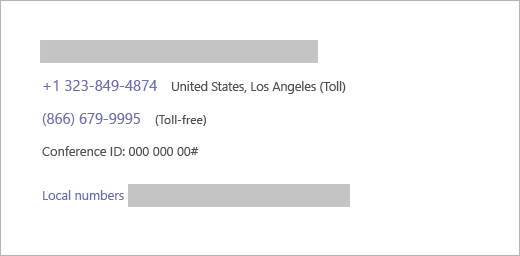
The number in your invitation may not be local to you. Select Local numbers to find one that is.
Add a room while you join
When you’re choosing your audio and video settings, you have the option to add a room so you can use a meeting room’s audio and video devices. Your personal device may even detect a nearby room using Bluetooth. If it does, you’ll see the meeting room’s name and the option to Join and add this room. If the nearby room has already joined the meeting, you can Join with audio off to avoid disrupting the meeting.
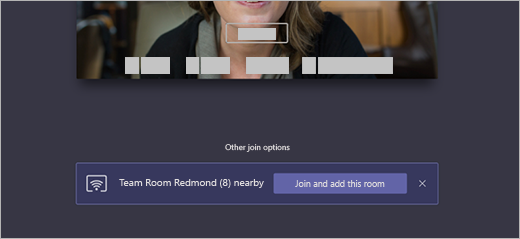
If your device doesn’t detect the room nearby, select Add a room under Other join options and search for the room you’re using.

Mobile
There are many ways to join a Teams meeting from a mobile device.
In this article
Overview
Join by link
To get the best of Teams meetings on mobile, including audio, video, and content sharing, you’ll need to download and install the Teams mobile app.
If you have the app, select Join Microsoft Teams Meeting in the meeting invite to open the app and join the meeting. If you don’t have the app, you’ll be taken to the app store where you can download it.
Note: Try to download the app before the meeting starts. It might take a minute or two, depending on your internet connection.
If you don’t have a Teams account, select Join as a guest and enter your name to join the meeting as a guest. If you have a Teams account, select Sign in and join to join with access to the meeting chat and more. Depending on the organizer’s settings, you may join the meeting right away or go to the lobby where someone else can admit you.
Join from calendar
Select Calendar  on the bottom of the app to see your meetings. Find the meeting you want, and then select Join.
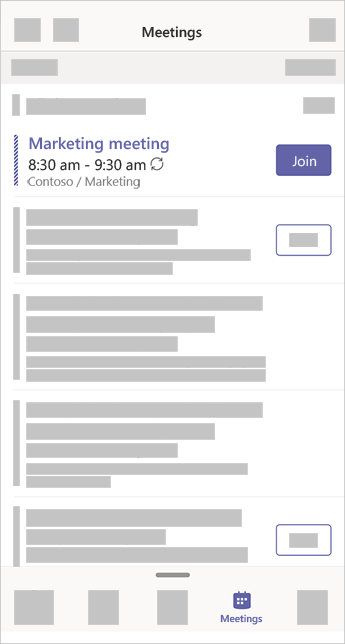
Join from a notification
When a Teams meeting starts, you’ll get a notification that’ll bring you directly to the meeting without finding it on your calendar. Just tap the notification to join.

Note: For now, this is only available on iOS. Coming soon to Android!
Join in a channel
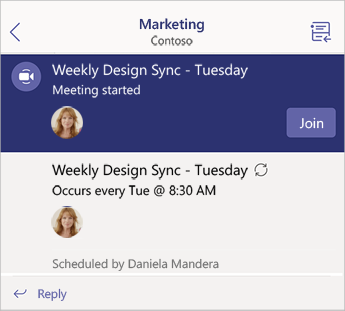
If a meeting takes place in a channel, you’ll see an invitation to join, relevant content, and the organizer right in the channel. Just select Join.
Join from chat
If the meeting or meeting chat has already begun, it appears in your recent chat list. Select the meeting in your chat list and then select Join at the top of the chat.
Dial in
Some meetings let you join by dialing a phone number if you're unable to use the Teams app.
If there's a phone number in the meeting invite, select it to dial the number and the conference ID. Once you're connected, dial 1 to join the meeting.
If you see a number in the invite but it's not local to you, select Local numbers to find one that works for you.
Join on multiple devices
Join a meeting on more than one device for more collaboration and content-sharing options. If you're already in a meeting on your laptop, for example, you can join on your phone as well to share live video, control a presentation with your phone, and much more.
Note: See Share content in a meeting for more info about using your phone as a companion device.
When you've joined a meeting on one device, open Teams on your mobile phone. (Make sure both devices are signed in to the same Teams account.)
You’ll see a message at the top of your mobile screen with an option to join the meeting on this device. Tap Join to share content from your phone with everyone in the meeting.
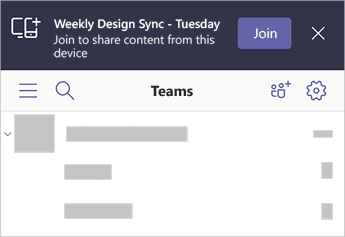
If you join this way, we'll mute your phone's speaker and mic to avoid causing an echo effect.
Source: Microsoft

12/11/2025


