
- Training
- Service
- Promotion
- Schedule
- Testing Center
- News
- Contact
7/16/2021


There's an awesome new feature in Excel called Show Changes. It's especially helpful if you have multiple people co-authoring (collaborating on) the same file. Excel tracks all of the changes that you and your co-authors are making to a shared workbook. Now you can essentially access a transcript to those changes and see who did what and when.
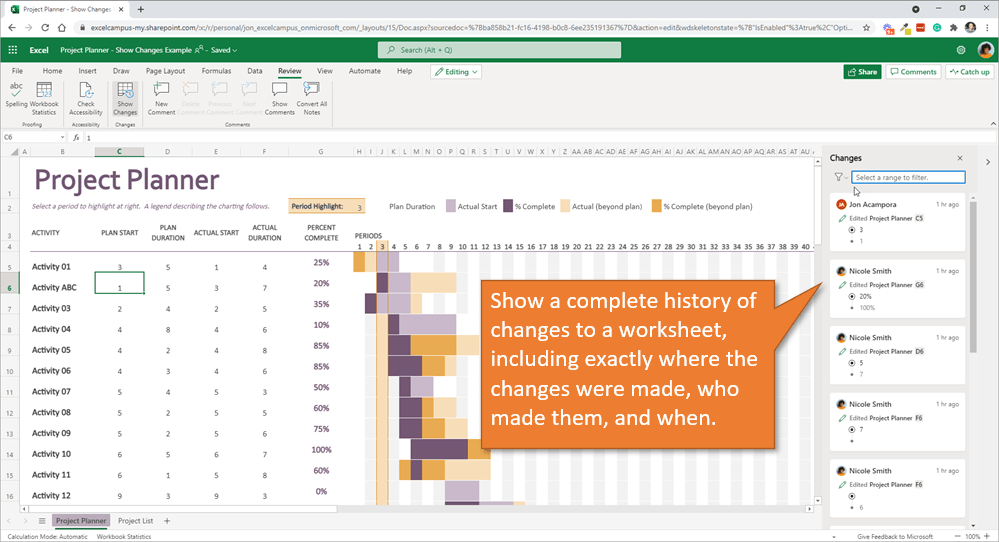
Currently, you can only view this record of changes using Excel Online. While changes made on the desktop application are still tracked, to view those changes you need to be using the web version.
Viewing Changes
See the changes that have been made to a workbook by going to the Review tab. Then click the Show Changes button.
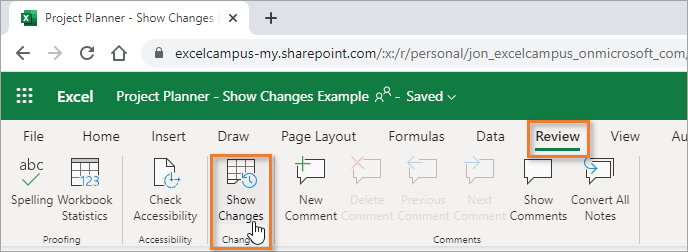
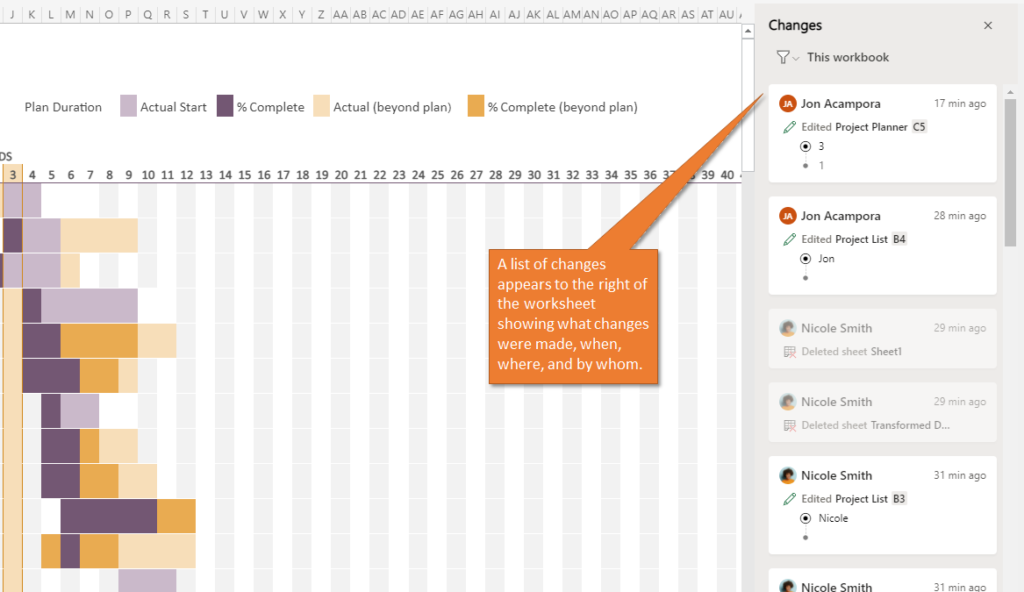
This will open up a task pane on the right side of the worksheet that has a running list. The list contains all of the changes that have been made in the workbook. Included with each entry is the name of the person who made the change, a timestamp of when the change was made, and a description of what the change was.
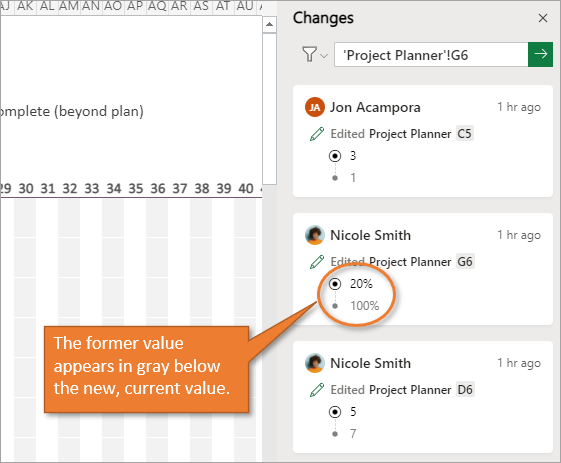
In instances where values were updated, the entry shows what the old value was in addition to the new value. Knowing what the previous value was can be useful in case you need to change it back.
Click on any of the changes in the list and it will automatically navigate to the cell where the change was made.
Note: The files that you want to track changes on must be stored on a shared platform such as one OneDrive or SharePoint, and you must have a Microsoft 365 subscription to use this feature.
Filter the Change List
As you can imagine, the list of changes can get pretty long over time, so one of the cool features to know about is the ability to filter. You can filter by sheet or even by range. To filter, just click on the button with the funnel icon. Then you will be prompted to select the range or sheet that you want to filter. Once you enter that in, you will see only the changes that have been made to the specified range or sheet.
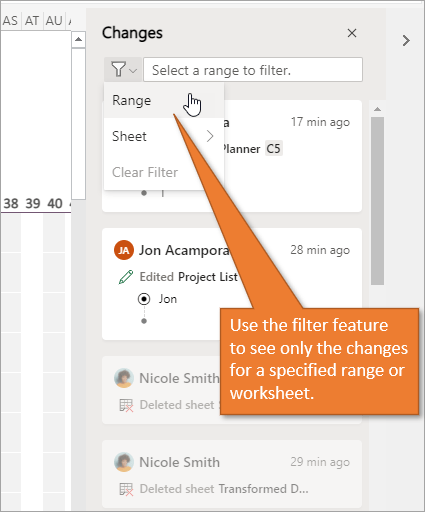
You can clear your filters using the same drop-down menu.
Conclusion
Again, this is a really useful new feature for Excel, and I'm excited to show it to you. If you haven't used Excel Online in a while, I encourage you to go play around with it. The Microsoft development team has done a great job of updating the web version to be more in line with the desktop version of Excel.
Can you see yourself using this Show Changes feature? I'd love to hear your feedback or questions. You can write them in the comments section below.
Source:www.excelcampus.com

12/11/2025


