
- Training
- Service
- Promotion
- Schedule
- Testing Center
- News
- Contact
7/30/2021


1. Show and Hide TextBox based on CheckBox value
If you got any requirement to show or hide textbox based on a checkbox value, then you can write the below formula in the Textbox visible property.
|
If(chkNominee.Selected.Value="No",true, false) |

Show and Hide TextBox based on CheckBox value
2. PowerApps allow only numbers
If you want to allow numbers only in textbox in PowerApps. then you can change in the PowerApps textbox control properties. Change Format to Number like below:
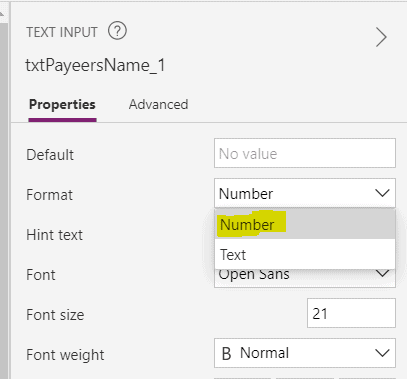
powerapps allow only numbers
3. PowerApps Allow Password Only
In PowerApps, if you want to allow password only in a textbox, then in the PowerApps textbox properties change Mode to Password.
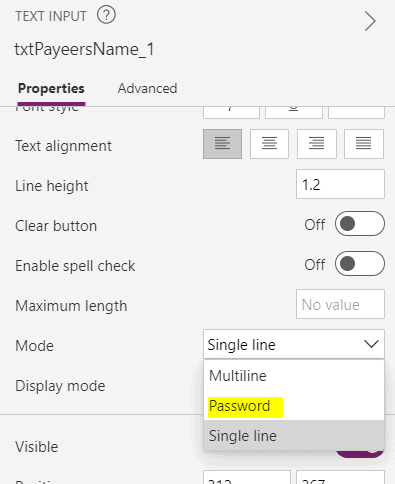
powerapps password text input
4. PowerApps Textbox with Maximum Length
If you want to set maximum length for textbox in PowerApps, then change the PowerApps textbox control properties to MaxLength to 8.

5. PowerApps Lookup DropDown
If you want to implement lookup dropdown in PowerApps, follow below steps like the screenshot.
Then list will looks like below:
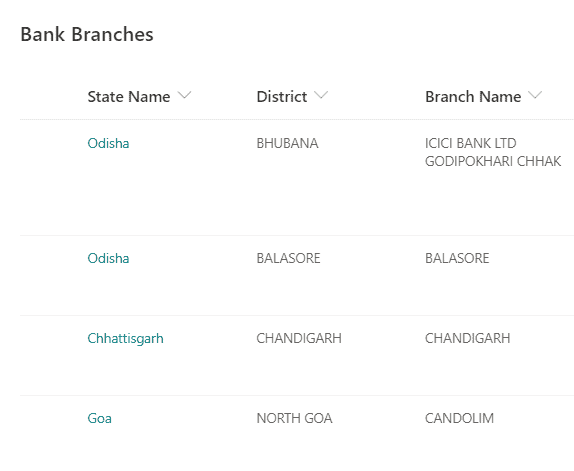
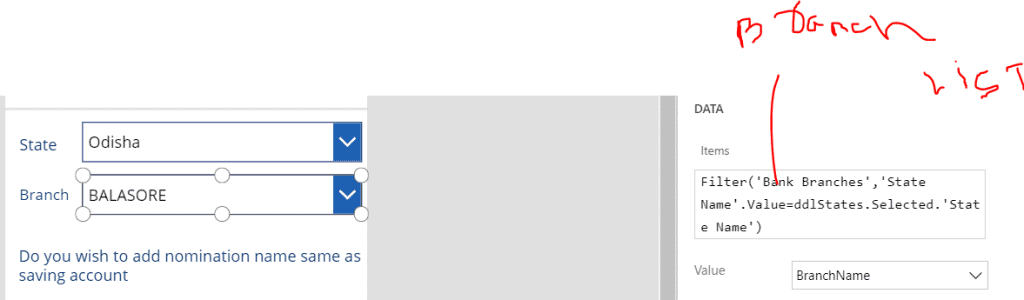
Here, we have two textboxes like State, Branch like below.
In the State dropdown, Items choose States column.
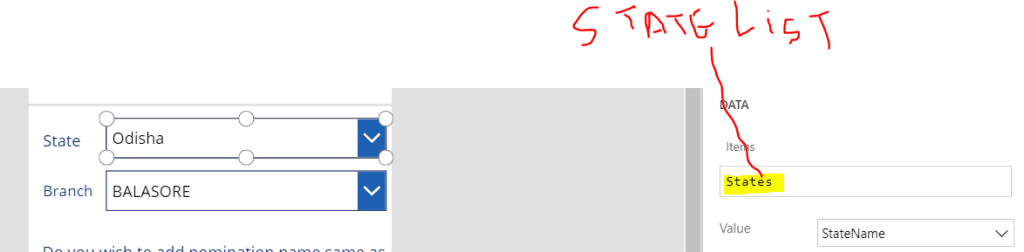
Then in the Branch write the Filter condition in the Items like below:
Filter('Bank Branches','State Name').Value=ddlStates.Selected.'State Name')
6. Add Year to Current Date
To add Year to Current Date in PowerApps, you can write the below formula.
|
Current Date : 11/9/2020 Add 15 Years in Current Date : 'Maturity Date':Text( DateAdd( Today(), 15, Years ),"[$-en-US]dd-mm-yyyy" ) O/p: 11-09-2035 |
7. Auto Generate Number in PowerApps
If you want to auto generate number in PowerApps, write the below formula in the textbox.
|
Set(UniqueAccountNumber,"ABC-"&Text(Now(),"[$-en-US]yymmddhhmmss")); |
O/p: ABC-200911115739
8. Get first starting letter of your name in PowerApps
If you want to get first starting letter of your name in PowerApps, write the below formula like below:
|
Left(LookUp('User Registration',Title=vAccountNo).AccountHolderName,1) |

9. Open outlook when click on Email id in PowerApps
If you want to Open outlook when click on Email ID in PowerApps, then in the OnSelect select property write the below formula.
|
Launch("mailto:"&(Lookup('User Registation', Title=vAccountNo).EmailID)) |

10. Open Contact when click on mobile number in PowerApps
If you want to open contact when click on mobile number in PowerApps, then write the below formula:
|
OnSelect=Launch("tel:"&(LookUp('User Registration',Title=vAccountNo).MobileNumber)) |

Source: www.enjoysharepoint.com

12/11/2025


