
- Training
- Service
- Promotion
- Schedule
- Testing Center
- News
- Contact
7/4/2022


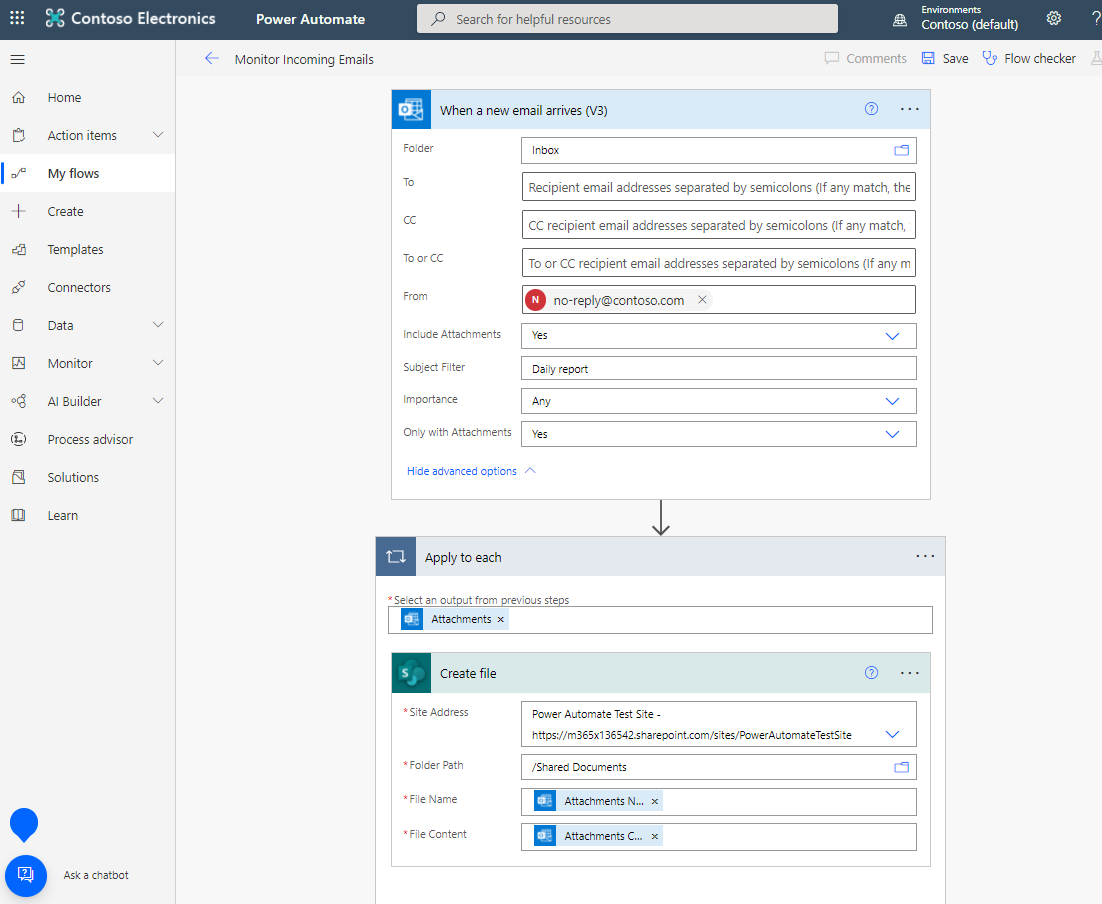
You can create a flow that automatically performs one or more actions after it's triggered by an event. For example, the flow can monitor your Outlook inbox and when an email with a specific subject line and email address arrives, the flow will take the attachment and save it to a SharePoint library.
Microsoft Office 365
You can use any SharePoint site of your choice and can also use an existing library.
In this scenario, we'll use the following SharePoint site and its default Documents library, which is available out-of-box.
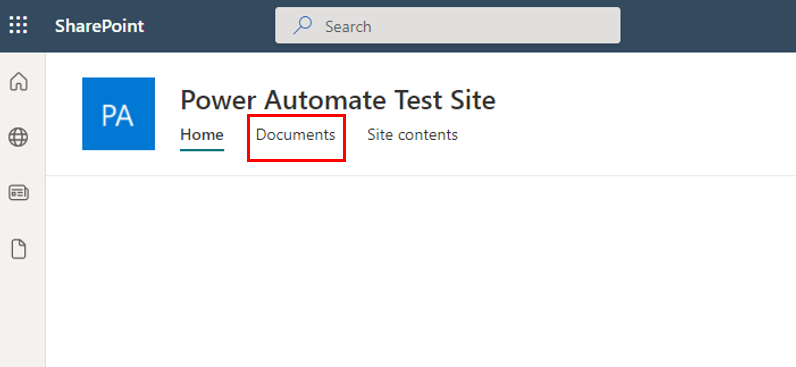
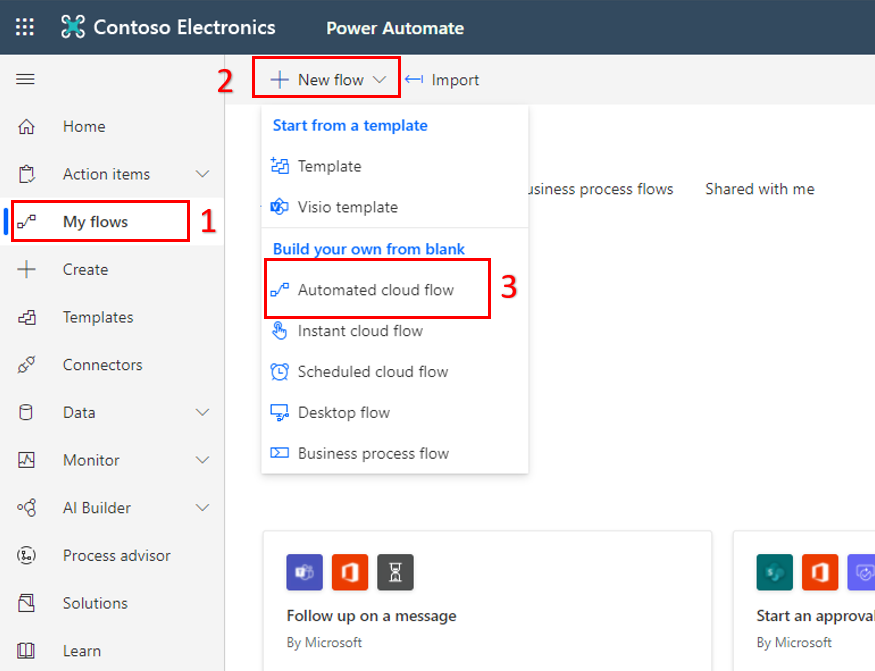
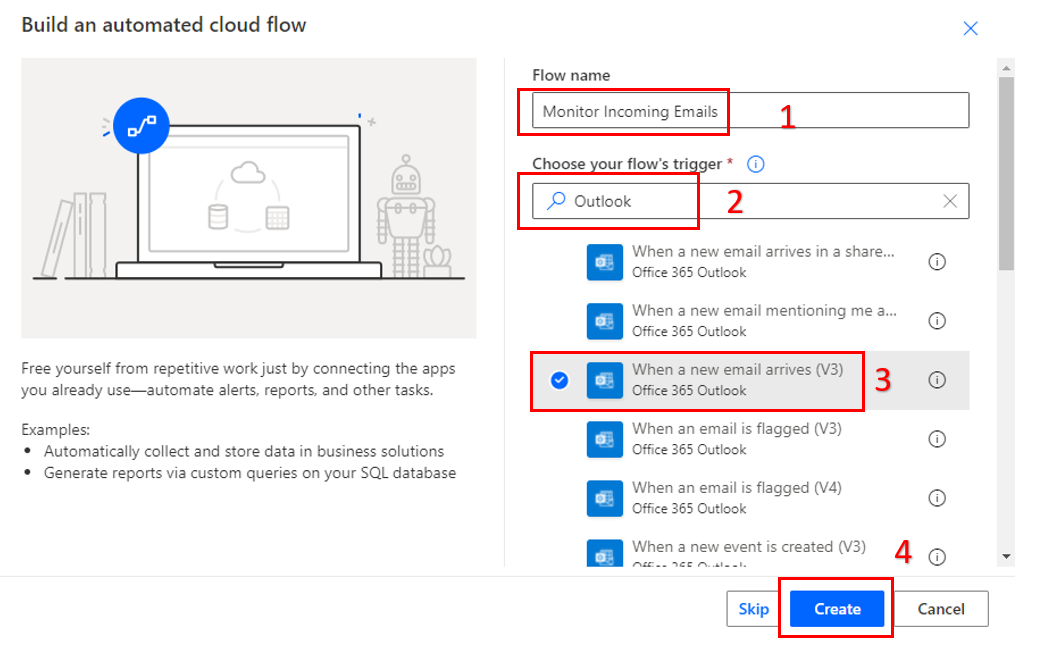
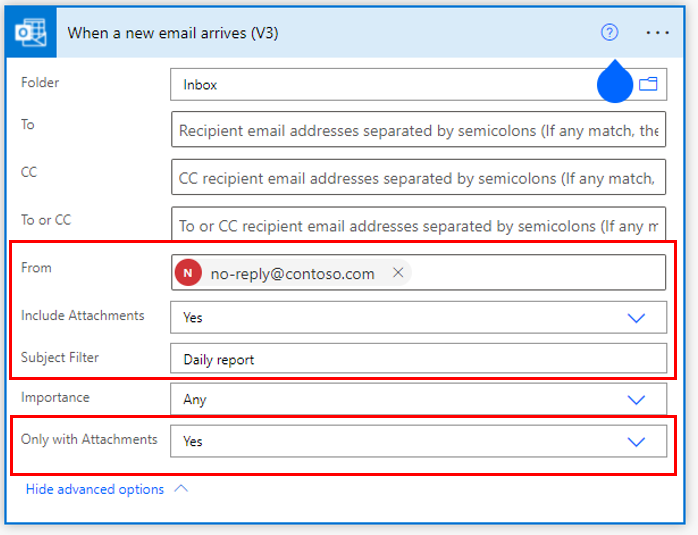
First, you must select the trigger (event) that starts the flow.
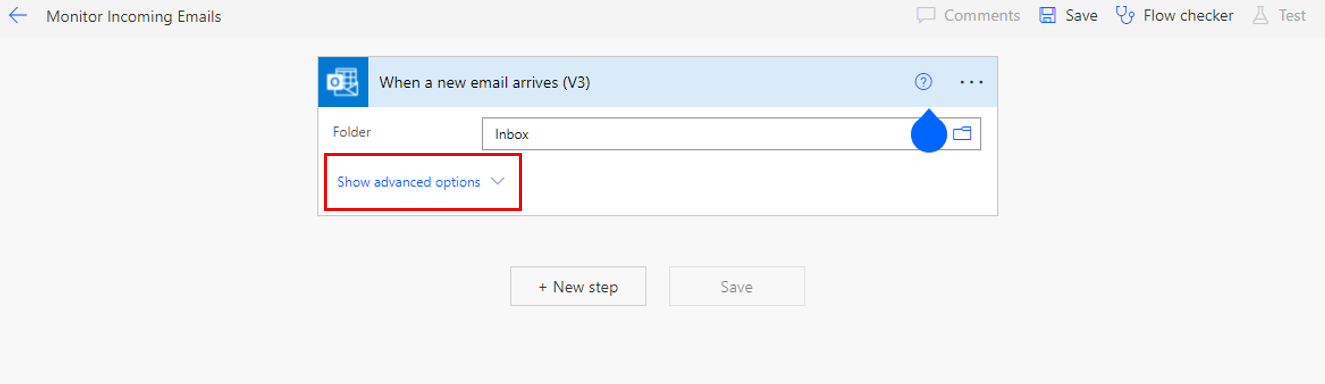
From - 'no-reply@contoso.com'
Include Attachments - 'Yes'
Subject Filter - 'Daily report'
Only with Attachments - 'Yes'
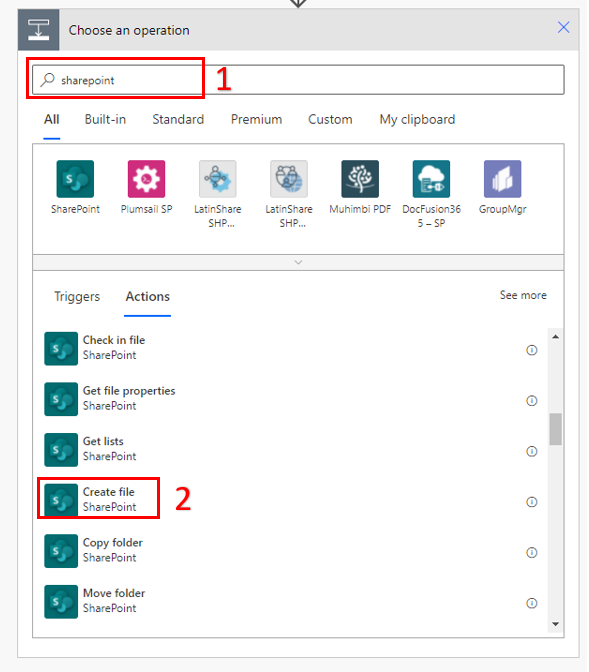
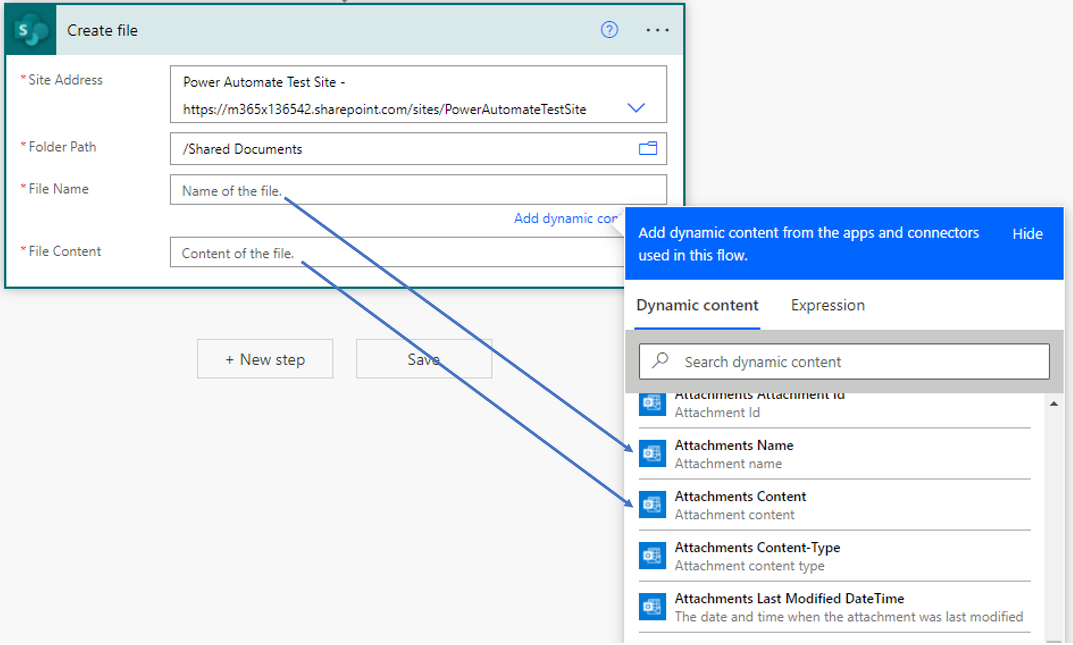
Site Address - Either copy and paste your URL or select the drop-down and select your site
Folder Path - Select /Shared Documents
File Name - Select Attachments Name from Dynamic Content
File Content - Select Attachments Content from Dynamic Content
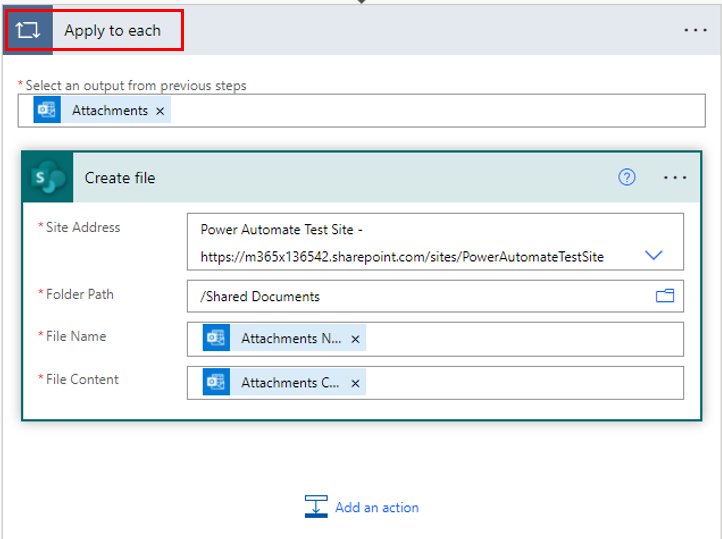
You have successfully built a Power Automate flow, which will monitor your Outlook inbox for any emails that have the text Daily report in their Subject line and have Attachments.
(Source: Microsoft)
Related training course: Microsoft Automate


12/11/2025


