
- Training
- Service
- Promotion
- Schedule
- Testing Center
- News
- Contact
3/1/2023


Pictures have always been an important part of Excel spreadsheets, adding color and visualization to the data workbooks. Today, we’re excited to announce a new way to use pictures, as in-cell objects which will be part of the Excel grid. Using the new IMAGE function, pictures can now live in the cell and be the cell value instead of floating on top of it. The feature is available now on all our platforms! Windows, MacOS, Web, Android and iOS.
With Pictures in cells, a whole new world of opportunities is unlocked! Imagine being able to insert a company logo next to important data, adding a product image to an inventory list and create an employee dashboard with their photos! You can use sort and filter, calculate, and write formulas with pictures, move or resize the cells, and work with Pictures within an Excel table.
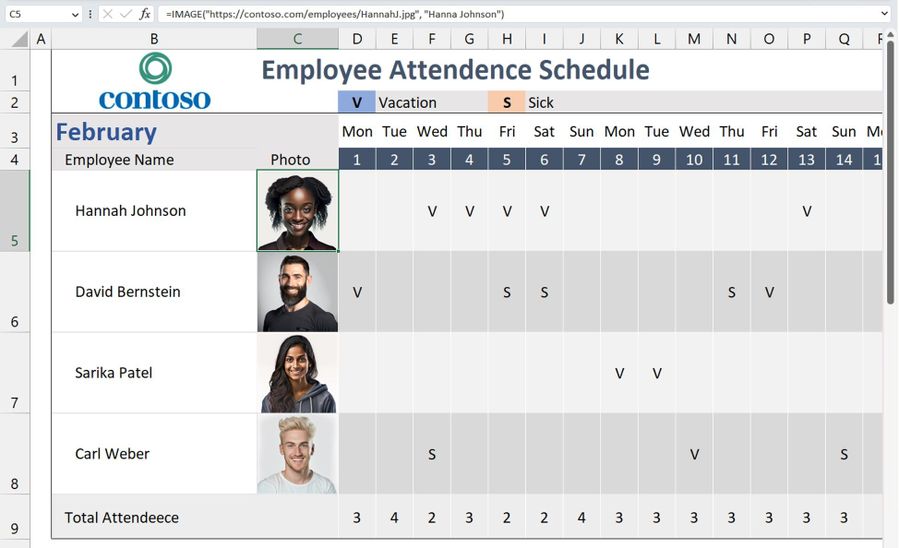
How it works
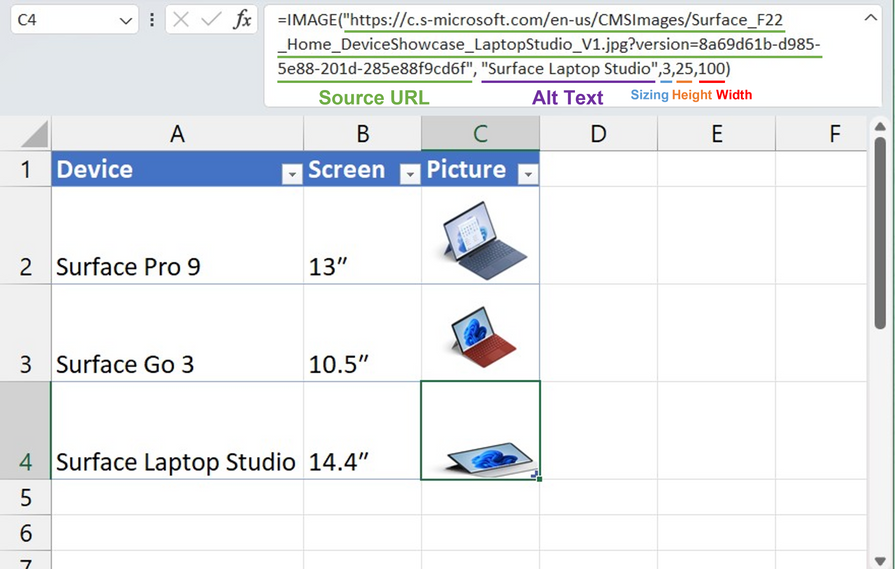
The IMAGE function inserts pictures into cells from a web source location along with alternative text. All you need to do is enter into a cell =IMAGE(source, [alt_text], [sizing], [height], [width]), where:
For example, in the screenshot below, we took a picture of the Surface Laptop Studio and changed its dimensions using the function's parameters.
Source: techcommunity.microsoft.com

12/11/2025


