
- Training
- Service
- Promotion
- Schedule
- Testing Center
- News
- Contact
5/30/2024


Learn how to effectively use Excel's new REGEX functions to validate, extract, and replace data patterns, enhancing data accuracy and consistency with the help of AI tools.
Download the Excel File
The workbook that I use in the video can be accessed here:
New REGEX Functions
Microsoft recently introduced three new REGEX functions in Excel that simplify finding and extracting complex patterns in your data. This tutorial will walk you through using these functions to prevent data entry errors with data validation and conditional formatting. You'll also learn how to leverage AI tools like Copilot or ChatGPT to make writing formulas easier.
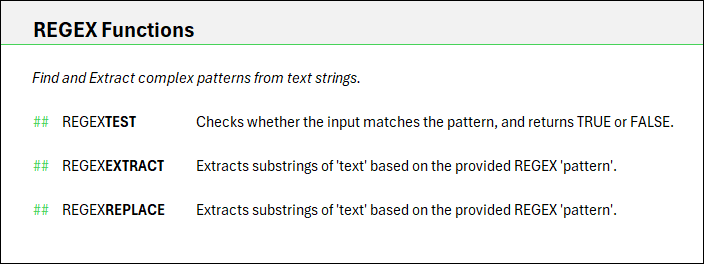
Understanding REGEX Functions
REGEX Test
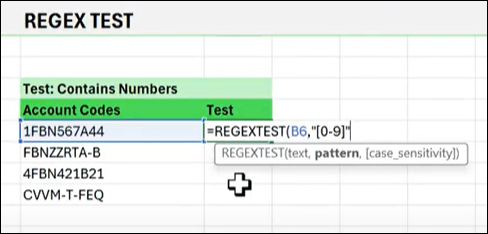
The REGEXTEST function allows you to check if a specific pattern exists in your data. For example, to determine if account codes contain any numbers:
Insert REGEX Test Function
Type =REGEXTEST(B6,"[0-9]") in the cell where you want to test. This pattern [0-9] checks for any numeric values.
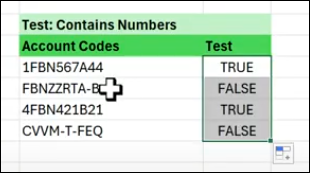
Drag to Apply
Then drag the formula down to apply it to the rest of the column. You’ll see TRUE for cells containing numbers and FALSE otherwise.
For Complex Patterns
For more complex patterns, such as detecting phone numbers in scraped data, use a more detailed REGEX pattern.
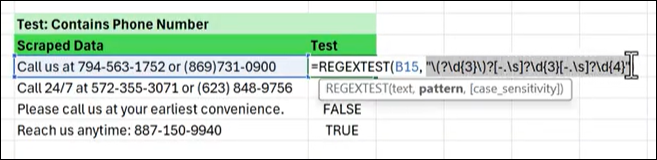
Fortunately, we can use AI tools to help write these complex patterns for us. More on that in a minute.
REGEX Extract
The REGEXTEXTRACT function is used to pull data matching a pattern from a text string.
Insert REGEX Extract Function
Type =REGEXEXTRACT(B6, "your_phone_number_pattern") to extract phone numbers.
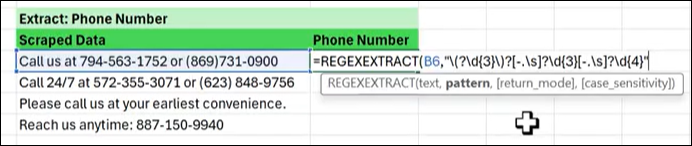
Return All Matches
Modify the return to get all matches by using =REGEXEXTRACT(B6, "your_phone_number_pattern", 1). This will spill the results into adjacent cells.

Transpose Results
To avoid spill errors, use TRANSPOSE(REGEXEXTRACT(B6, "your_phone_number_pattern", 1)).
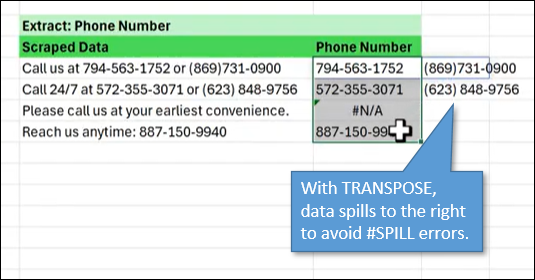
REGEX Replace
The REGEXREPLACE function lets you find a pattern and replace it with specified text or another pattern.
Insert REGEX Replace Function
Use =REGEXREPLACE(B6, "your_phone_number_pattern", "replacement_format") to standardize phone number formats.

Apply to Dates
Similarly, format dates consistently using REGEXREPLACE.
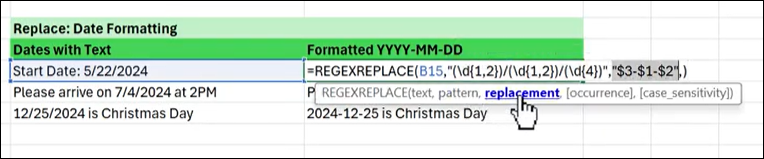
Enhancing Data Validation with REGEX
A great way to put REGEX to use is with data validation. You can ensure data integrity by incorporating REGEX into your data validation rules.
Copy REGEX Test Formula
Copy your REGEX.TEST formula, e.g., =REGEXTEST(C7, "your_sku_pattern").
Apply Data Validation
Then select the cells where you want the data validation applied, go to the Data tab, click Data Validation, choose Custom, and paste the formula. Adjust cell references as necessary.
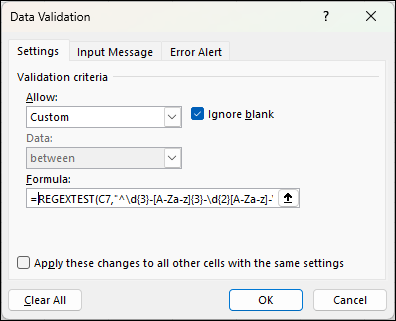
Using Conditional Formatting with REGEX
A great way to make noncompliant entries stand out is to use conditional formatting with REGEX. You can highlight cells that do not match the specified pattern.
Copy Formula
Copy the REGEXTEST formula.
Apply Conditional Formatting
Select the cells, go to the Home tab, click Conditional Formatting, choose New Rule, use a formula, paste the formula, and format the cells to highlight mismatches.
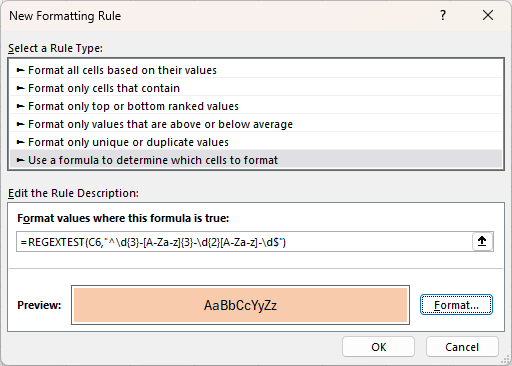
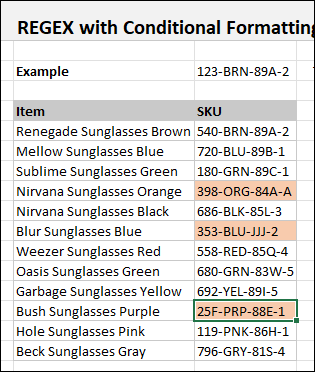
Once you hit OK, the entries that are out of compliance with your pattern will be highlighted.
Leveraging AI Tools for Complex Patterns
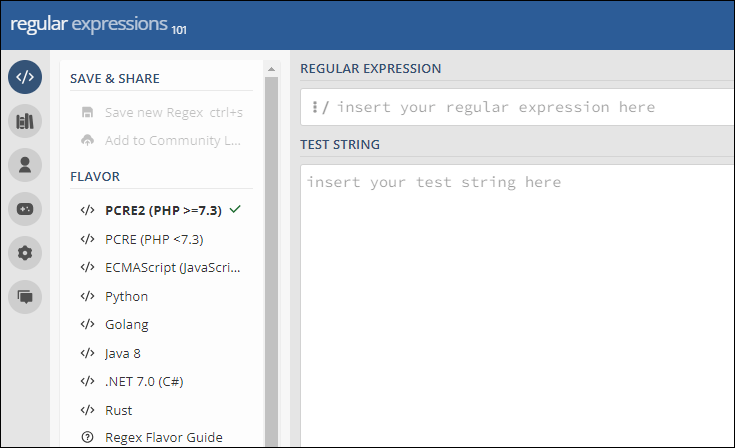
Creating complex REGEX patterns can be challenging. Use AI tools like ChatGPT or Copilot to assist you. For example, request help from ChatGPT by providing the pattern requirements with a prompt such as, “Please help create a REGEX expression for the following pattern…”
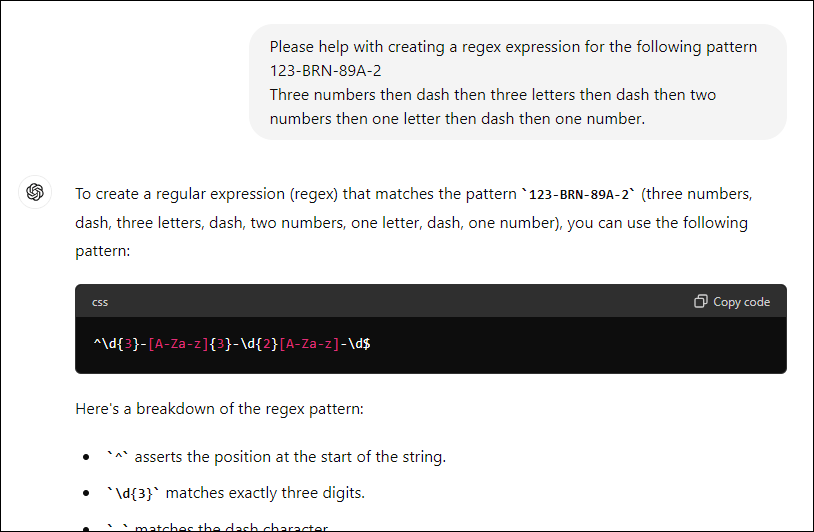
ChatGPT not only gives you the expression, but breaks down its components for explanation. Copy the generated pattern into your Excel formula.
Source: excelcampus.com

12/11/2025


