
- Training
- Service
- Promotion
- Schedule
- Testing Center
- News
- Contact
2/12/2020


Bottom Line: Learn how to disable or completely uninstall and remove an Excel Add-in from the Add-ins menu.
Skill Level: Beginner
An add-in (or VBA add-in) is a file that contains macros. It has the extension “.xlam”. When opened, the worksheets in the file are hidden and the macros are typically accessed through buttons that are added to the toolbar or ribbon. Once installed, the .xlam file will automatically open every time Excel is opened.
If you don't want an add-in to run, it can simply be disabled (switched off) or completely removed.
1. Open Excel and click on the File.
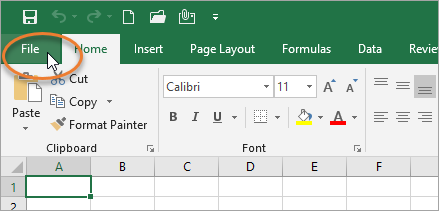
2. Then choose the Options menu.

3. Next, click the “Add-Ins” option on the left-side menu, and then click the “Go…” button.
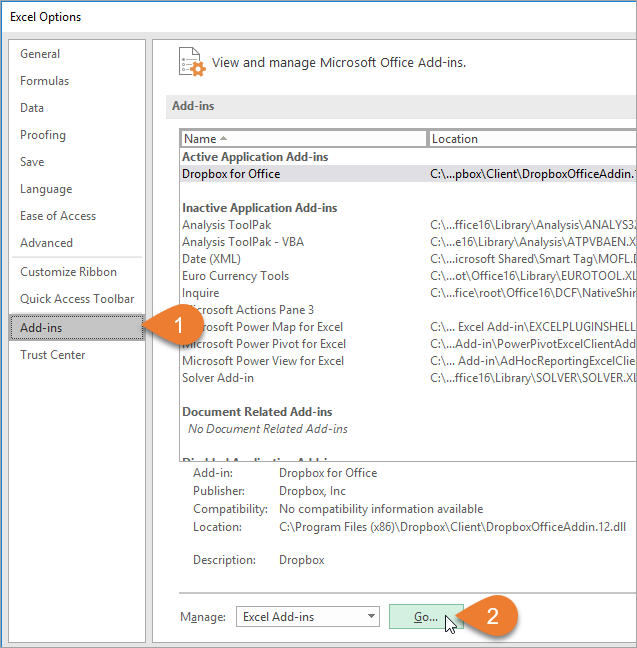
You may have to wait a few seconds for the window to appear.
Another way to access your add-ins is by clicking on the Excel Add-ins button on the Developer tab.
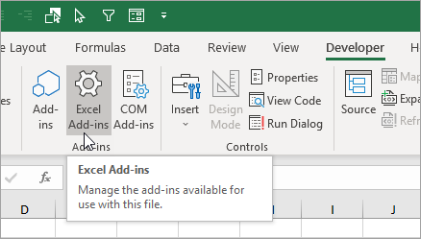
You can also add the Excel Add-ins button to the Quick Access Toolbar if you use it frequently.
4. Uncheck the box next to the name of the add-in you want to disable. Then click OK.
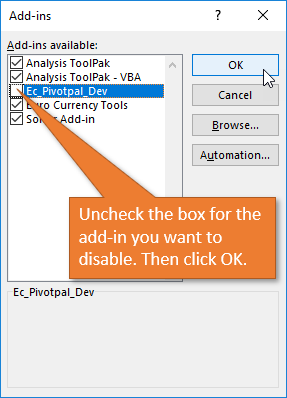
The add-in will be disabled and closed in the background. It will not open next time you open Excel.
1. Open Excel, go to the File tab, and choose the Options Menu, just as in steps 1 and 2 above.
2. Next, determine where the add-in file is saved on your computer.
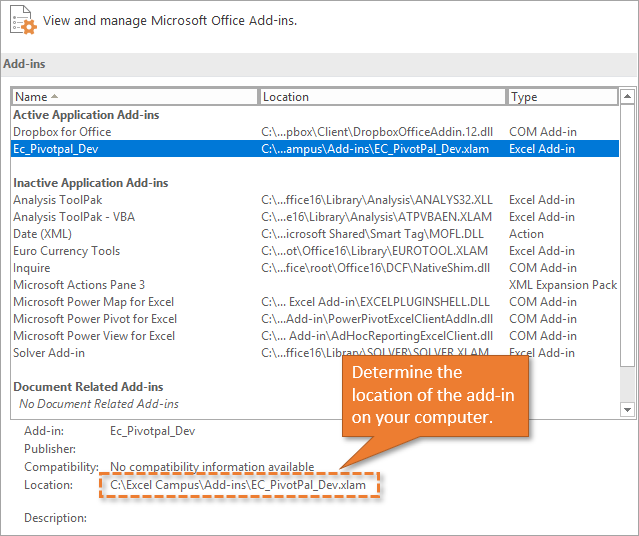
3. Close Excel.
4. Then go to the location of the add-in and delete or rename it.
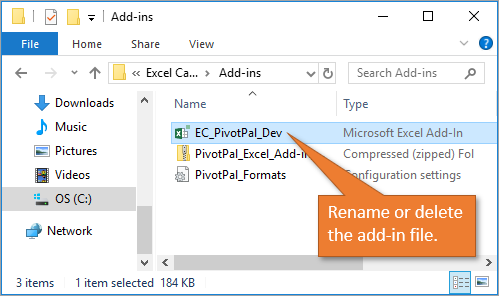
5. Open Excel and navigate back to the Add-ins menu in the Options window.
6. Press the “Go…” button to open the Add-ins window.
7. Click the add-in you just deleted.
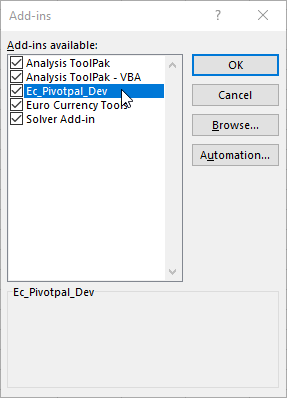
8. A message box will appear asking you if you want to permanently delete the add-in. Click Yes. 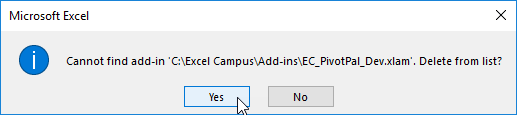
You've now permanently deleted the add-in from the Add-ins Window menu.
You can also use this process for Microsoft Word, PowerPoint, and Outlook.
Source: Excel Campus

12/11/2025


