
- Training
- Service
- Promotion
- Schedule
- Testing Center
- News
- Contact
4/27/2022


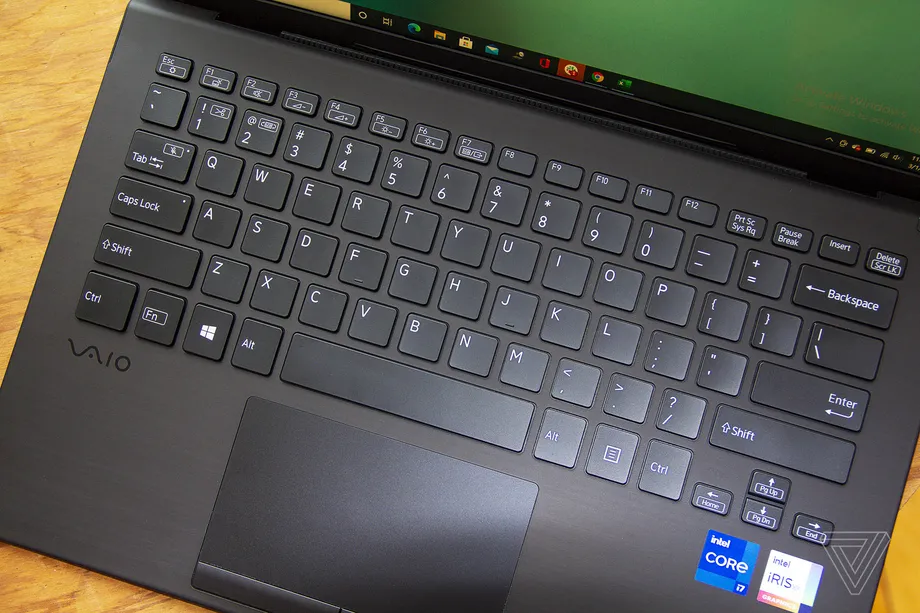
USE THE TOUCH KEYBOARD
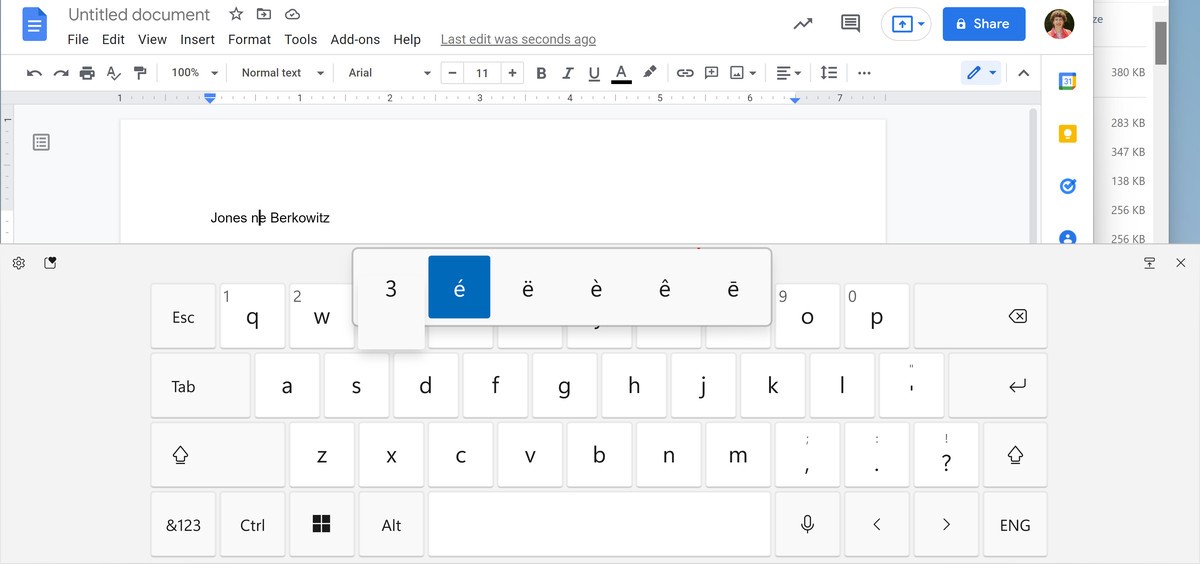
The easiest way to add diacritical marks to a document is to enable the Windows touch keyboard. The touch keyboard automatically appears if you’re using a Windows tablet or a PC in tablet mode. If you don’t have a touchscreen, you can use the keyboard icon that appears in the taskbar on the right side near the date. Don’t see it? This is how you get it:
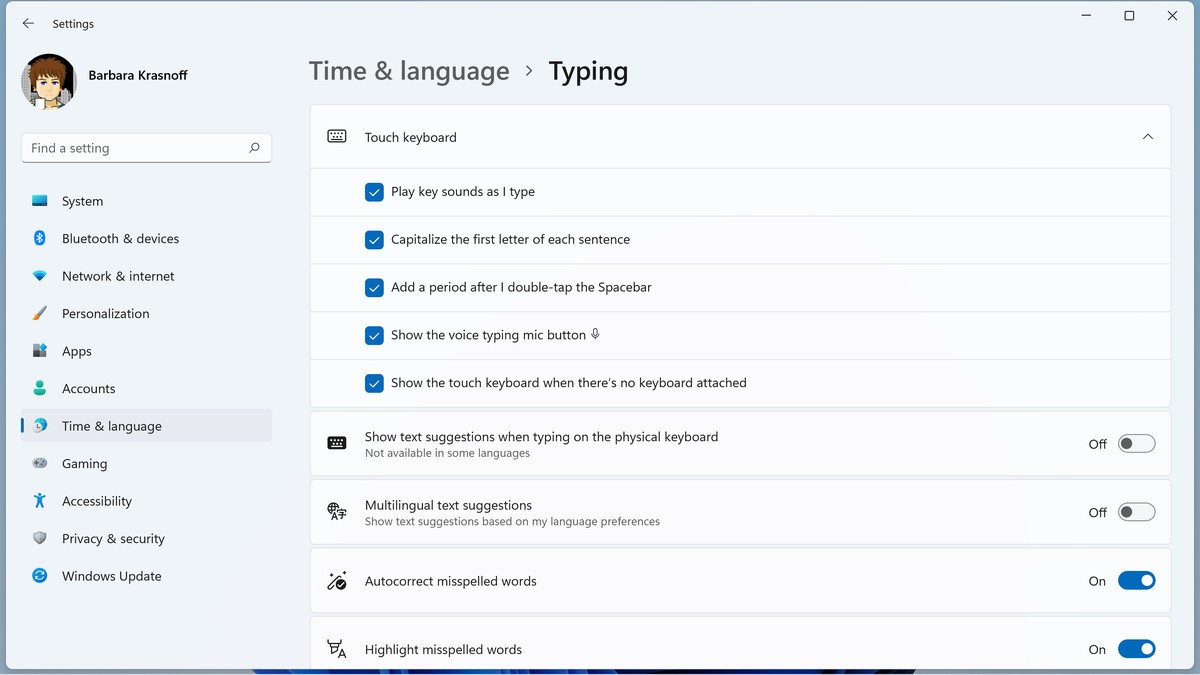
Now, when you want to use a special character:
USE THE EMOJI KEYBOARD
Another keyboard that you can access and that can let you easily add special characters to your text is Windows’ emoji keyboard. Yes, it is mainly for adding emojis to your text, but it’s got other uses as well. And it’s simple to use.
The emoji keyboard also lets you access special characters.
USE THE CHARACTER MAP
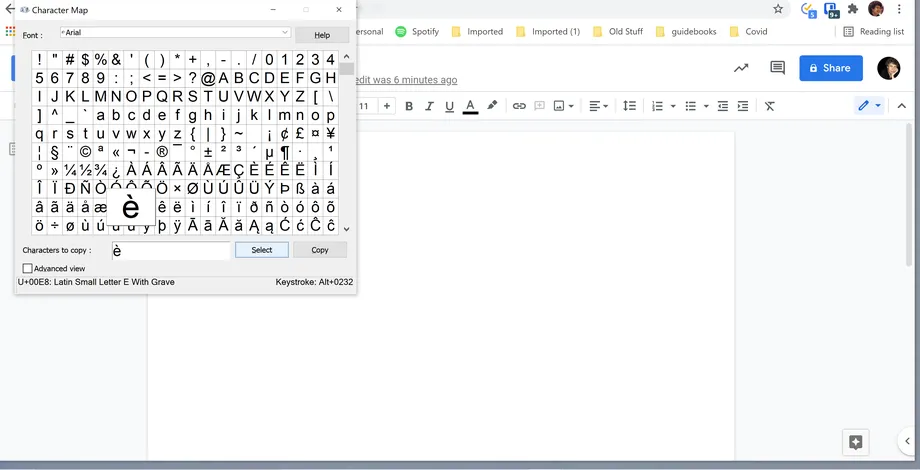
If you’d like to try a more old-fashioned method of adding special characters to Windows, you can use the character map, which is a less polished and more complicated version of the touch keyboard but offers a similar service.
To access it on your Windows 11 system:
First, you need to add the US International Keyboard to Windows:
USE THE US INTERNATIONAL KEYBOARD
If you’re an English speaker who is multilingual and uses special characters a lot, you may want to try the US International Keyboard, which maps your keyboard to more easily allow you to add special characters. (Thanks to “shiroledat” for the tip.)
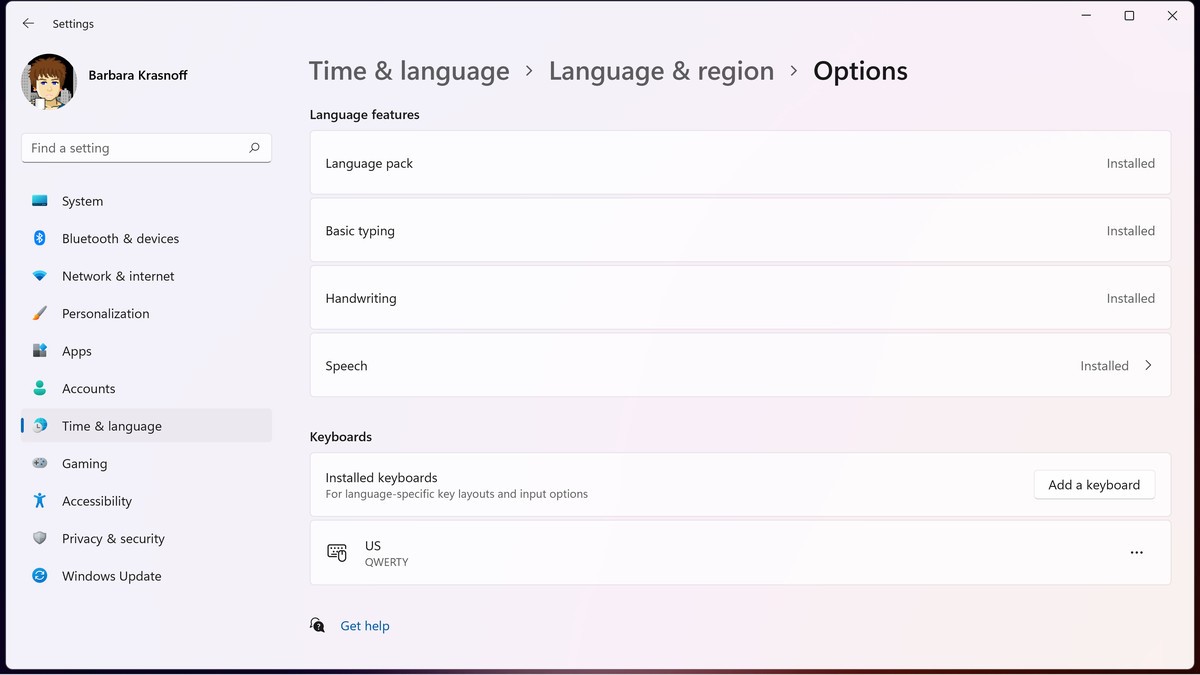
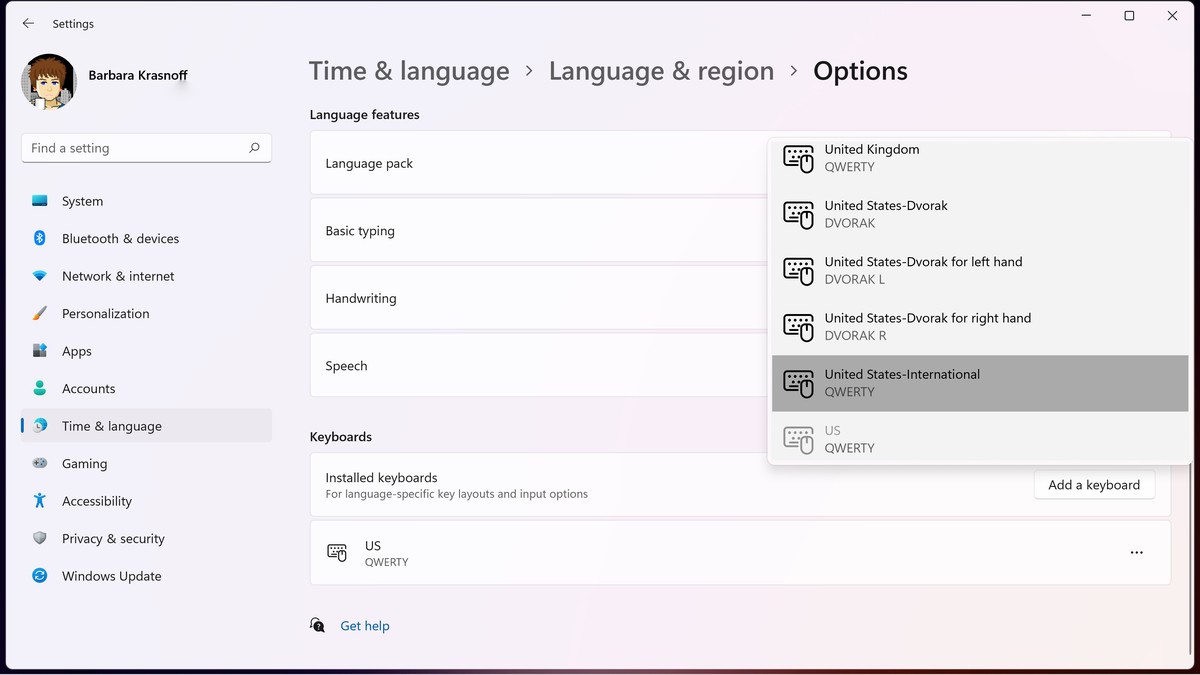
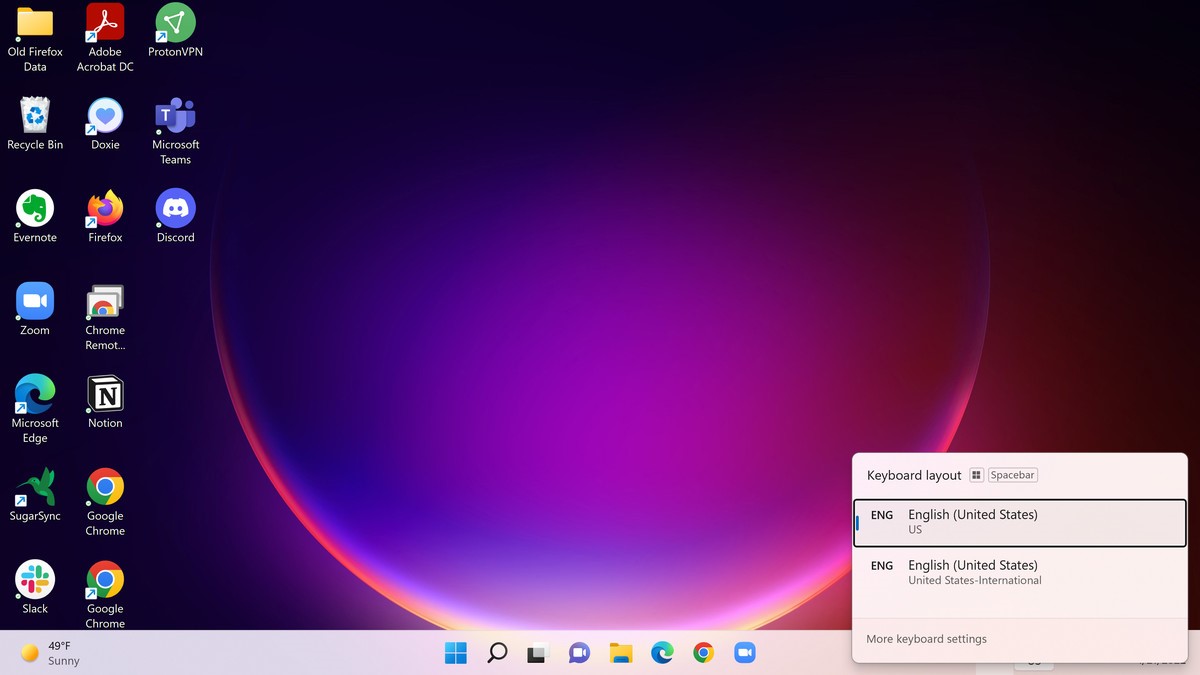
Now, you always have the choice of using either the standard US keyboard or the US International Keyboard. You can see which one is active in the lower-right side of your taskbar near the date. It will either read ENG / US or ENG / INTL. Click on that (or just hit Windows key+space bar) and a pop-up menu will let you switch from one to the other.
The US International Keyboard gives you two ways to add a special character:
USE THE UNICODE VALUE
Remember the character map? If you look at the lower right-hand corner of the character map after you’ve chosen a letter or special character, you’ll see the word Keystroke followed by Alt and a four-digit number. This number represents the of the symbol, and it’s the time-honored standard for adding characters.
If you use a few special characters consistently, it can be faster to simply add the character you want using your usual keyboard. There are several ways to do this; here are two of the easiest (each of which has its limitations):
Source: https://www.theverge.com

12/11/2025


