
- Training
- Service
- Promotion
- Schedule
- Testing Center
- News
- Contact
7/2/2021


Bottom line: Learn a few quick tips to quickly reorder multiple columns in Power Query without having to move each column individually.
Skill level: Beginner
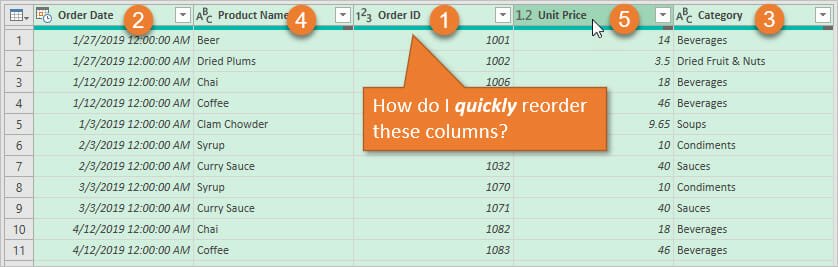
1. Reorder Multiple Columns with Ctrl+Select
The easiest way I've found to reorder multiple columns is to select the columns with the Ctrl key and then move them. Here are the instructions.
1. Hold the Ctrl key and select each of the columns in the order you want them displayed. In this example I want the columns to be displayed in the following order, so I select each column in that order.
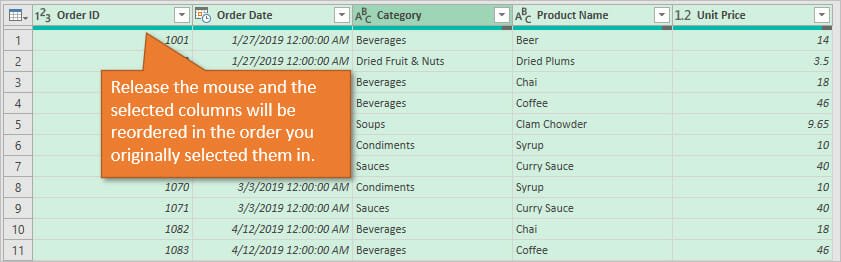
Order ID, Order Date, Category, Product Name, Unit Price
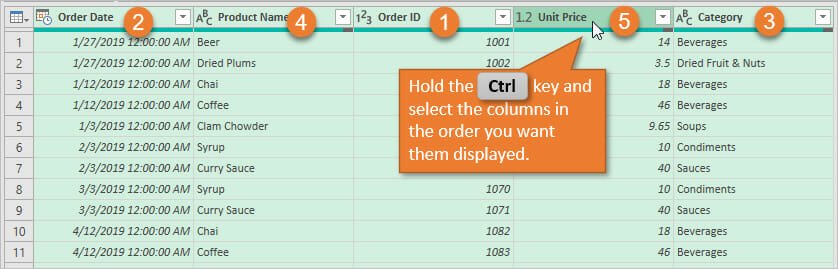
2. Left-click and hold any one of the columns and drag the mouse to the location you want to place the columns.
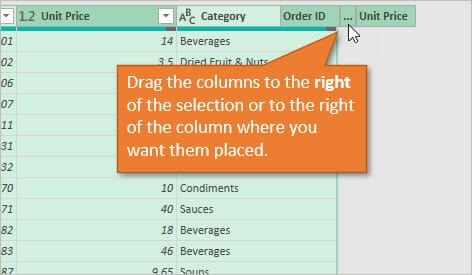
3. Release the mouse and the columns will be reordered based on the order you selected them in step 1.
Important Note: If you end up selecting all of the columns, you will need to drag the selection to the right of the last column, then release. If you drag to the left of the columns, nothing will happen.
2. Reverse Order of Columns
You can use this same basic technique to quickly reverse the order of all (or some) columns.
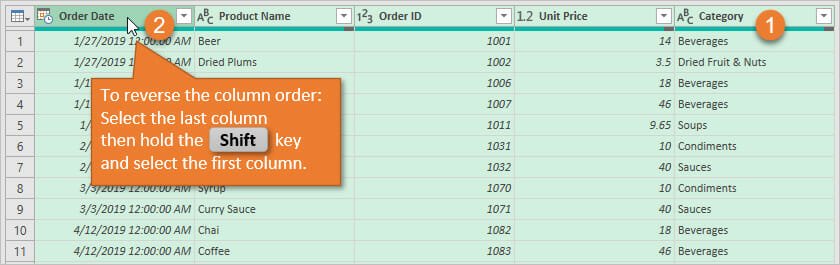
1. Select the last column in the table, hold the Shift key, and then select the first column in the table.
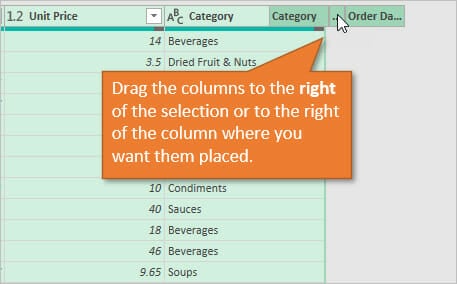
2. Left-click and hold the last column and drag the mouse to the right of the last column.
3. Release the mouse and the column order will be reversed.
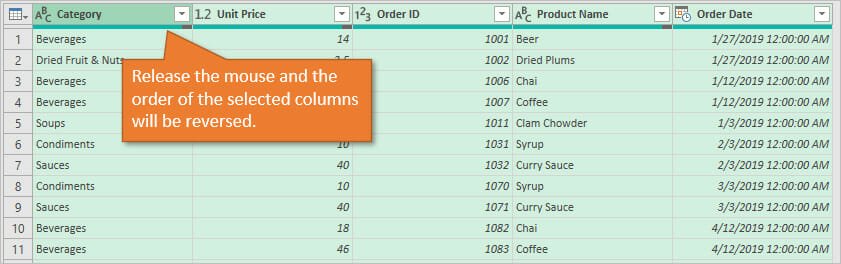
Note: You can also use this same technique for reversing the order of just some of the columns in your query. The process is the same, you will just select a few columns within the table. You can also drag the columns to the left if the first column is not part of the selection.
3. Undo or Change the Order
If you realize that the new column order isn't exactly what you wanted, there are a few ways to fix it.
Undo the Reorder
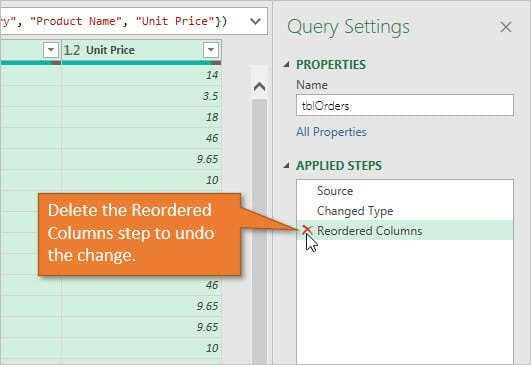
First, you can undo the change by deleting the Reordered Columns step in the Applied Steps window. Then use the select and move technique again with the correct order.
Manually Refine the Order
If just a few columns are out of order, you can also manually select and drag individual columns to move them. If you do this step directly after the previous step above, then the Reorder Columns step will be modified in the Applied Steps window.
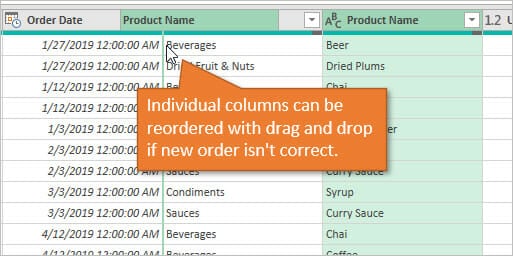
Power Query is smart enough to NOT add additional steps for the reordering, which makes it easier to delete the step if needed.
Modify the Formula Text
Another option is to modify the formula text in the Table. ReorderColumns function that is created for the Reorder Columns step. To me, moving the columns with the mouse is easier because you don't have to worry about getting the syntax with the commas and quotation marks perfect (any typos in the syntax will result in an error).
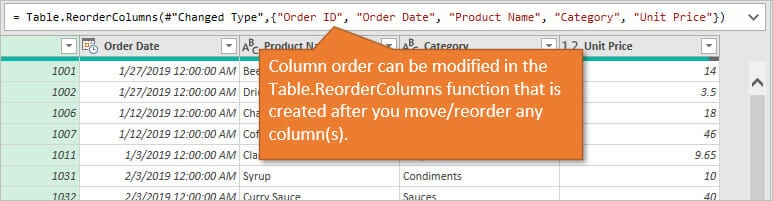
However, it's still good to know about this technique because you might have the column order in another file, report, or list somewhere, and you can use that text to quickly modify the column order. This can be especially useful if your table has dozens or hundreds of columns.
Source: www.excelcampus.com

12/11/2025


