
- Training
- Service
- Promotion
- Schedule
- Testing Center
- News
- Contact
7/2/2021


An artist will scrap what they're working on, even if it's taken them days if they feel inspired to change their work.
Similarly, in Excel we may want to change how we structure or organize our data. Once you enter the information into the worksheet, you may need to format your data as a table. Tables can improve the look and feel of your workbook. They will also help organize your content and make your data easier to use. Excel includes many predefined table styles and tools, allowing you to create a schedule quickly and easily.
Sometimes you may need to clear the table format style from a table, but still need to keep the table data in Excel. Apart from copying and pasting the table as values, this article will introduce two ways to clear/delete the table format style without losing table data in Excel. If the table exists alone on a worksheet, the quickest way is to delete the sheet.
Clear Table Formatting Style Without Losing Table Data
You can apply the convert to range feature to easily remove the table format style from the table. Please do the following:
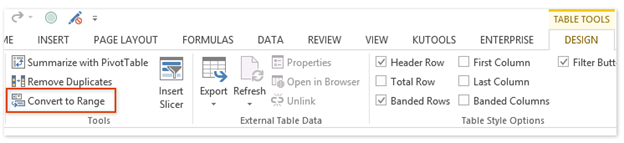
1. Select which cell in the table you will erase the table format from to activate Tabletools, then click Design > Convert to Range. See screenshot:
Note: You can also right-click any cell in the table and then click Table > Convert to Range from the right click menu.
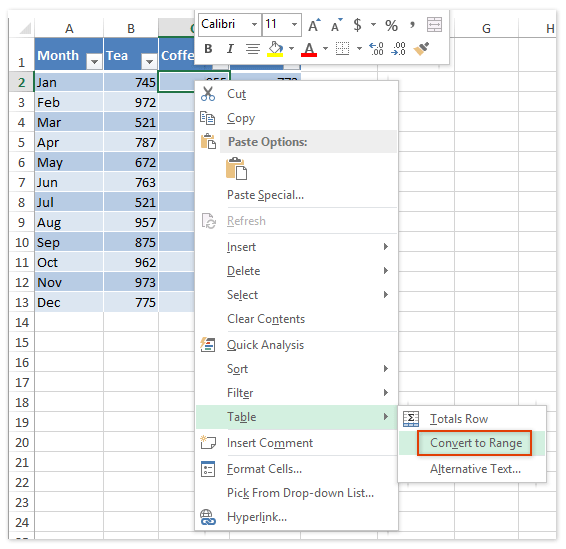
2. In the Microsoft Excel pop-up dialog, please click Yes.

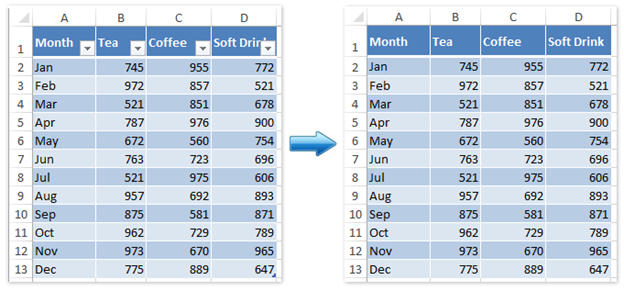
Now you will notice that the table formatting style has been removed/cleared from the original table. However, the actual table fill color, font color, and other formatting styles are preserved. See screenshot:
A horrible work experience like writing on the board can be "erased." The only difference is that it is easier to do this in the program. So let's think about everything in order.
Source: www.simplesheets.co

12/11/2025


