
- Training
- Service
- Promotion
- Schedule
- Testing Center
- News
- Contact
7/21/2021


Bottom Line: Learn about the different calculation modes in Excel and what to do if your formulas are not calculating when you edit dependent cells.
If you've ever been in a situation where the formulas in your spreadsheet are not automatically calculating like they should, you know how frustrating it can be.
If you're working with a sheet that is supposed to recalculate values when you input data and hit enter, you may be wondering what's going on when it doesn't update like it should. One potential reason for this could be that Excel is not in Automatic Calculation Mode.
To check what calculation mode Excel is in, go to the Formulas tab, and click on Calculation Options. This will bring up a menu with three choices. The current mode will have a checkmark next to it. In the image below, you can see that Excel is in Manual Calculation Mode.
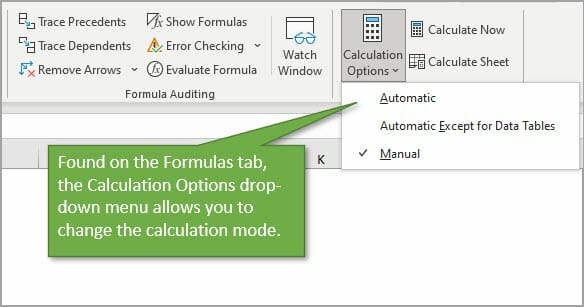
When Excel is in Manual Calculation mode, the formulas in your worksheet will not calculate automatically. By changing the mode to Automatic, you can quickly and easily fix your problem.
The calculation setting is an application-level setting. That means no matter what workbook you are working in, the setting will remain the same until you change it. Because that's the case, you may have a worksheet that is automatically updating just fine on your work computer, but not on your home computer. That's because the settings are different on the two computers.
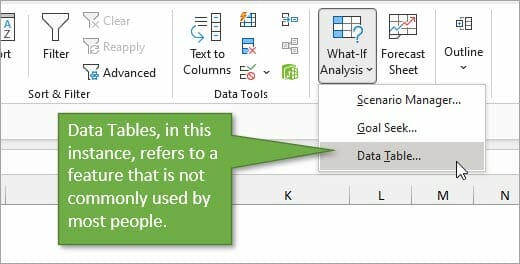
In addition to the Automatic and Manual settings, there is a third option to choose. This is the Automatic Except for Data Tables option. This is not referring to normal Excel Tables that you might work with frequently. This refers to a scenario-analysis tool that not many people use. You find it on the Data tab, under the What-If Scenarios button. So unless you're working with those Data Tables, it's unlikely you will ever purposely change the setting to that option.
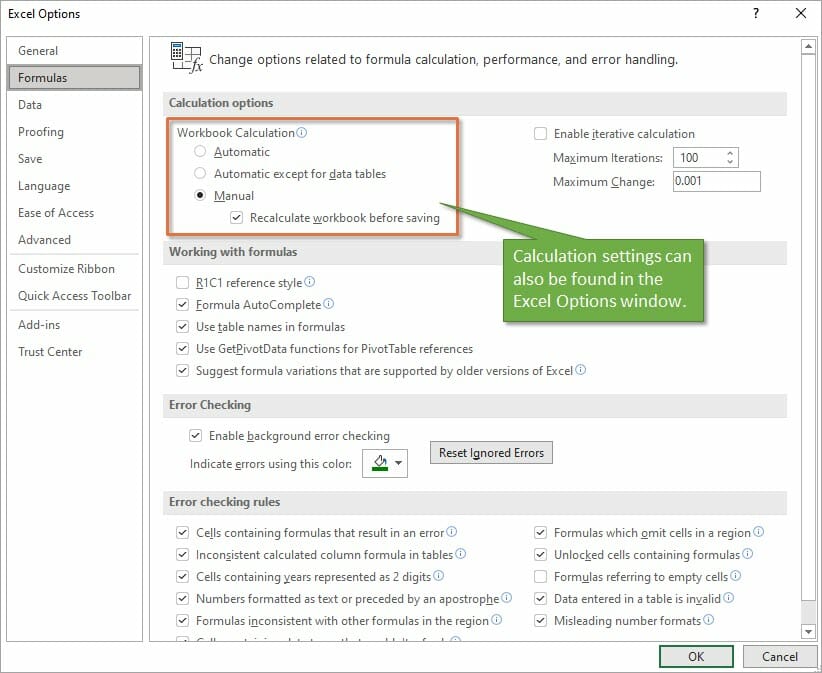
In addition to finding the Calculation setting on the Data tab, you can also find it on the Excel Options menu. Go to File, then Options, then Formulas to see the same setting options in the Excel Options window. Under the Manual Option, you'll see a checkbox for recalculating the workbook before saving, which is the default setting. That's a good thing because you want your data to calculate correctly before you save the file.
Why Would I Use Manual Calculation Mode?
If you are wondering why anyone would ever want to change the calculation from Automatic to Manual, there's one major reason. When working with large files that are slow to calculate, the constant recalculation whenever changes are made can sometimes slow your system. Therefore people will sometimes switch to Manual mode while working through changes on worksheets that have a lot of data, and then will switch back.
When you are in Manual Calculation mode, you can force a calculation at any time using the Calculate Now button on the Formulas tab.
.jpg)
The keyboard shortcut for Calculate Now is F9, and it will calculate the entire workbook. If you want to calculate just the current worksheet, you can choose the button below it: Calculate Sheet. The keyboard shortcut for that choice is Shift + F9.
If you find that your workbook is not automatically calculating, but you didn't purposely change the mode, one reason that it may have changed is because of a macro.
Now I want to preface this by saying that the issue is NOT caused by all macros. It's a specific line of code that a developer might use to help the macro run faster.
The following line of VBA code tells Excel to change to Manual Calculation mode.
Application.Calculation = xlCalculationManual
Sometimes the author of the macro will add that line at the beginning so that Excel does not attempt to calculate while the macro runs. The setting should then changed be changed back at the end of the macro with the following line.
Application.Calculation = xlCalculationAutomatic
This technique can work well for large workbooks that are slow to calculate.
However, the problem arises when the macro doesn't get to finish—perhaps due to an error, program crash, or unexpected system issue. The macro changes the setting to Manual and it doesn't get changed back.
Therefore, if you are using this technique with your macros, I encourage you to think about ways to mitigate this issue. And also warn your users of the potential of Excel being left in manual calc mode.
I also recommend NOT changing the Calculation property with code unless you absolutely need to. This will help prevent frustration and errors for the users of your macros.
Source: excelcampus.com

12/11/2025


