
- Training
- Service
- Promotion
- Schedule
- Testing Center
- News
- Contact
6/16/2021


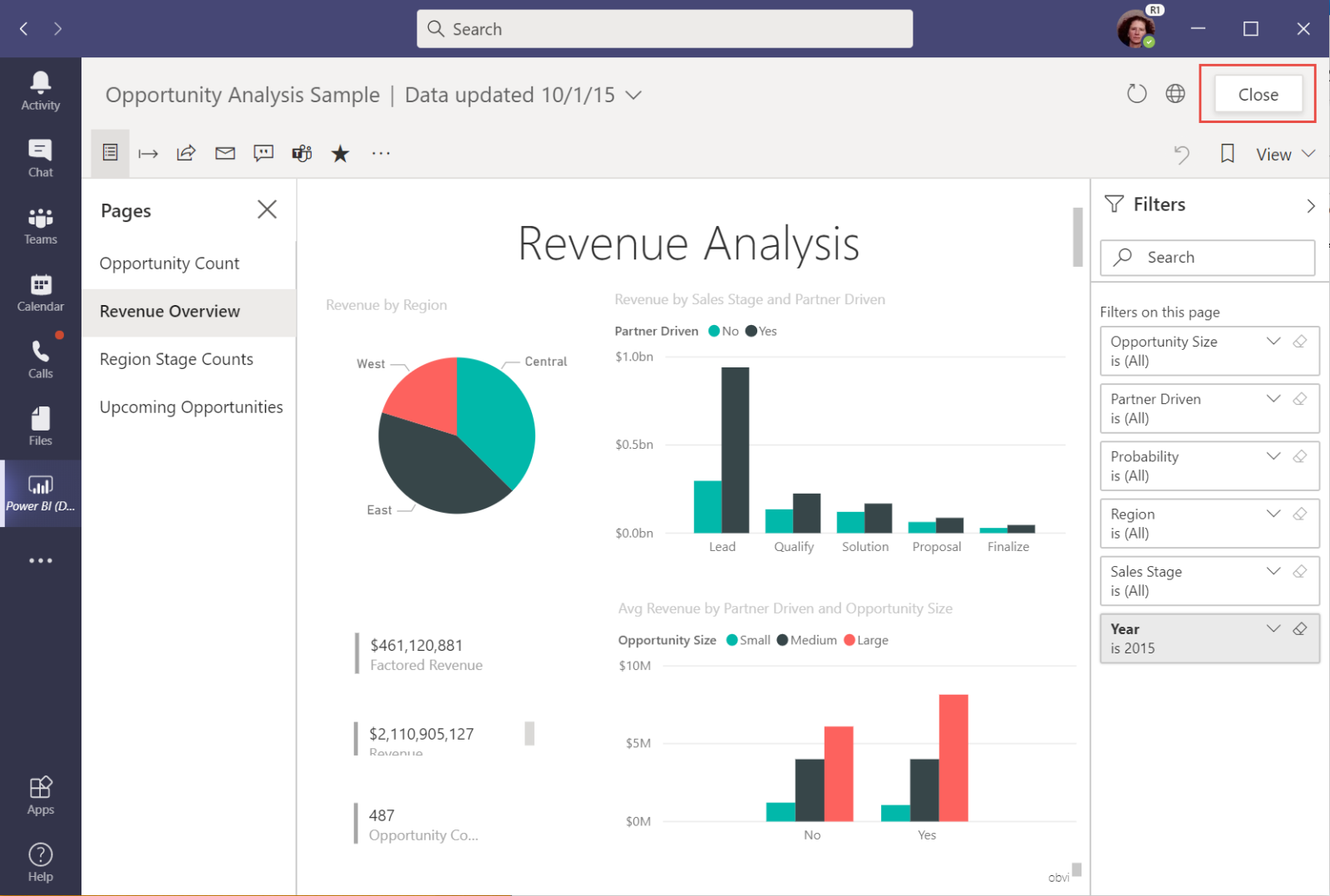
This article describes how you can install, pin, and interact with Power BI right inside Microsoft Teams. The Power BI personal app brings the entire basic Power BI service experience to Microsoft Teams.
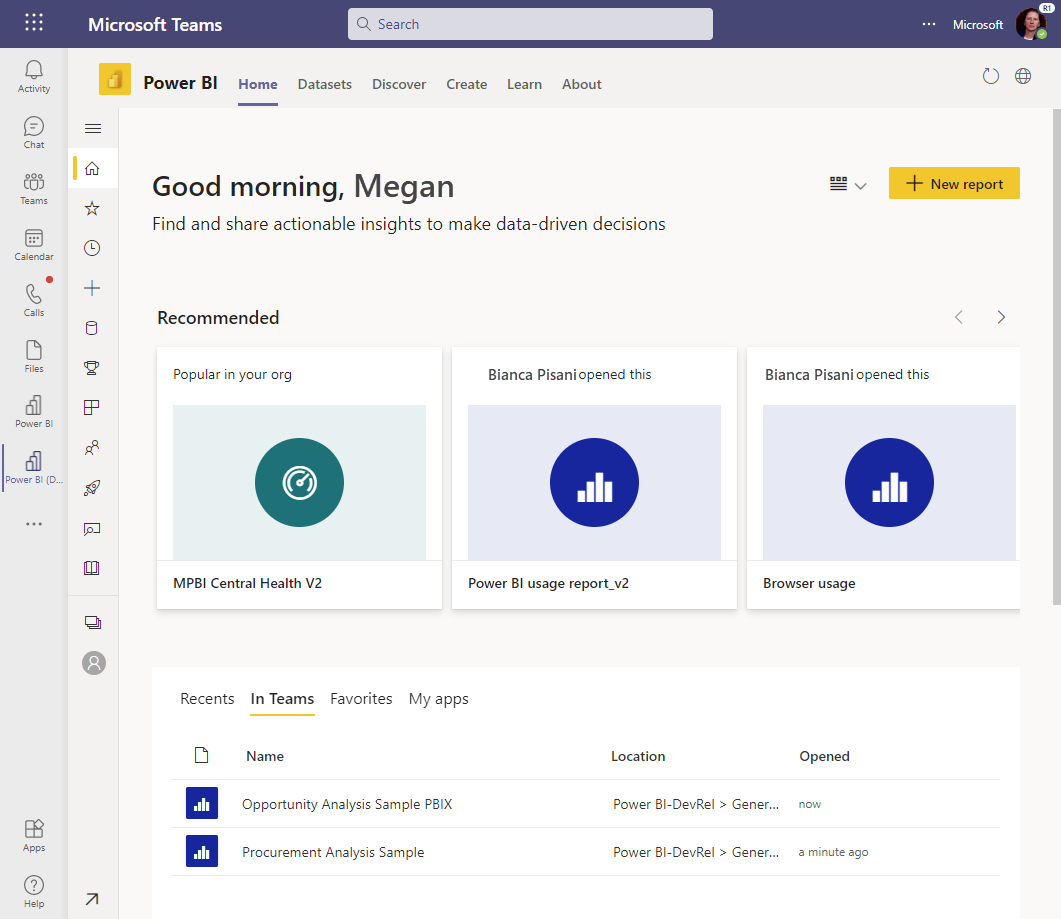
The Power BI app in Microsoft Teams is one of the ways that you can collaborate with Power BI in Teams. The app is your personal experience of Power BI. It's as if the Power BI service lives inside Microsoft Teams. After you install it, you can do almost everything in Microsoft Teams that you can do in the Power BI service:
And there's a feature in the Power BI app in Teams that you don't see when you view the Power BI service (app.powerbi.com) in a web browser.
In general, for Power BI to work in Microsoft Teams, ensure these elements:
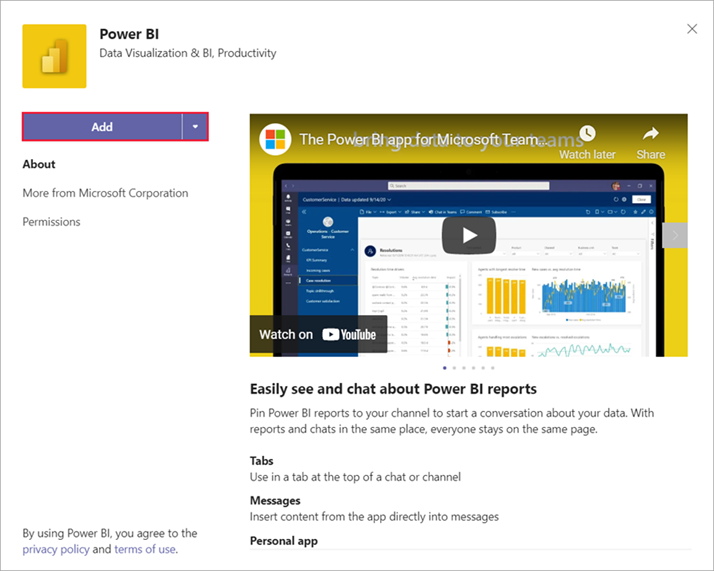
Install the Power BI app
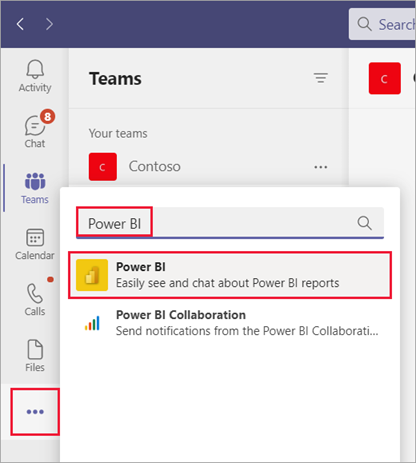
Select More added apps (...) in the left navigation bar, then search for and select Power BI.
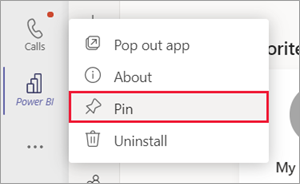
To keep the app available in Teams, pin it to the Teams navigation pane.
Interacting with your content in Microsoft Teams is the same as in the Power BI service. You interact with your dashboards, reports, apps, or workspaces in the same ways.
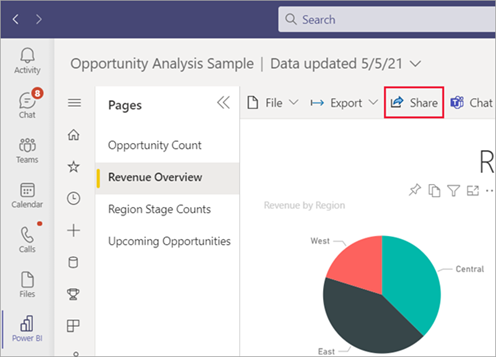
You can even share a report to your coworkers in Microsoft Teams, from the Power BI app in Microsoft Teams.
Differences in interactions
A few interactions are different in the Teams app than they are in the browser
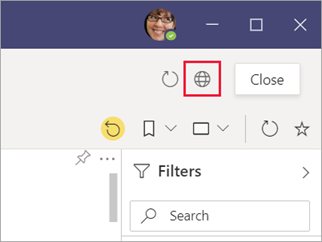
With the search experience in Teams, you can find recent reports, dashboards, and apps and open them within the Power BI app for Teams. Give the search experience a try.
1. In the Teams search bar, type @Power BI.
Note Be sure to include the space between "Power" and "BI".
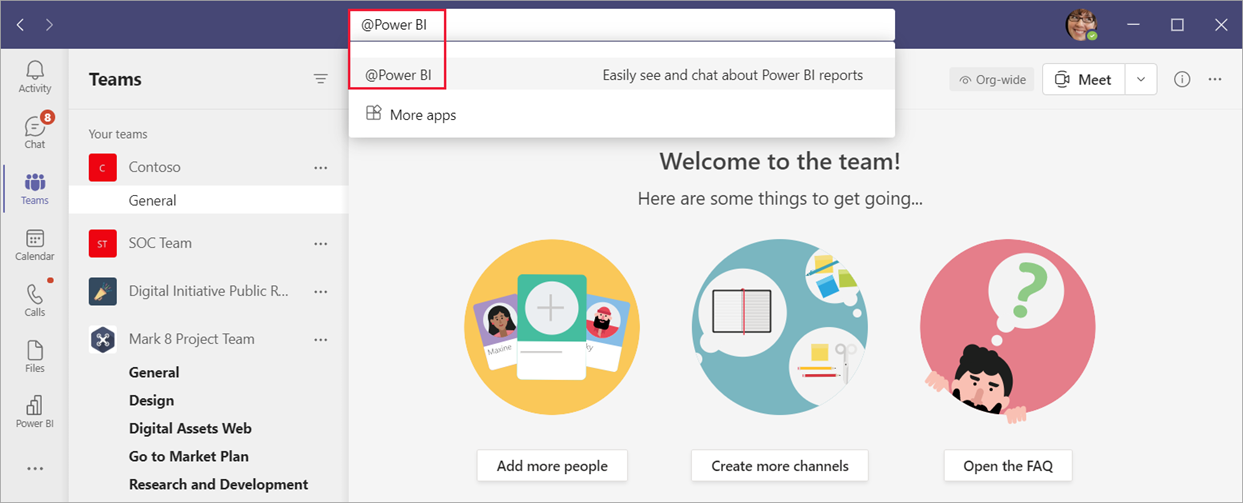
2. Select an item from the list, or type something to search for.
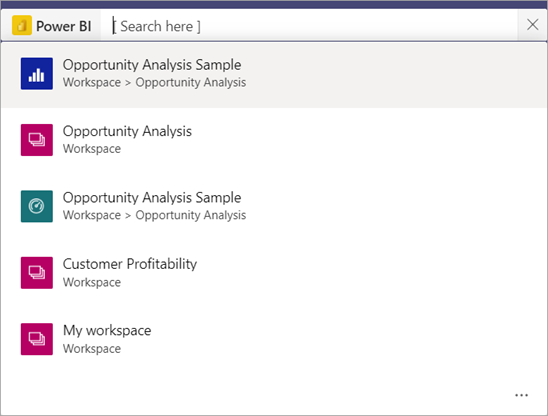
3. Press Open.
The first time you use this capability, you need to sign in.
4. If you haven't installed the Power BI app yet, you'll be given the opportunity to add it.
Known issues and limitations
Source: docs.microsoft.com

12/11/2025


