
- Training
- Service
- Promotion
- Schedule
- Testing Center
- News
- Contact
8/30/2024


Download the Excel File
19 Uses for New Checkboxes in Excel.xlsx
Watch the Tutorial
1. Simple Checklist
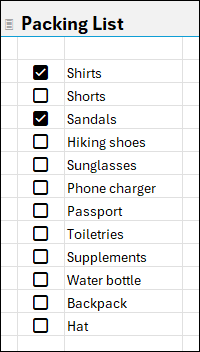
Create a basic checklist for tasks like packing for a vacation. Insert checkboxes next to your list, allowing you to check off items as you go. The checkboxes are interactive—just click to check or uncheck or use the space bar for quick toggling.
2. Conditional Formatting for a List
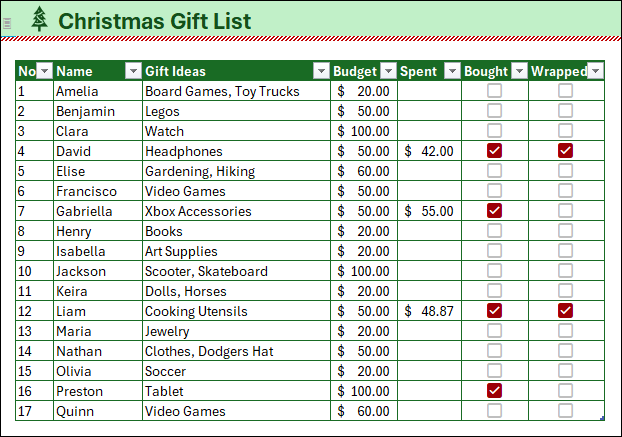
Enhance your lists, such as a Christmas gift list, by applying conditional formatting to checked items. When an item is checked, the checkbox changes to a different color, like red, making it easier to see what's been completed.
3. IF Formula
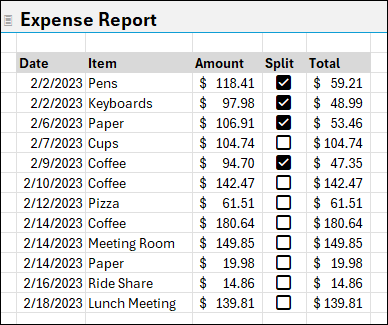
Use the IF formula with checkboxes to automate calculations. For example, in an expense report, a checked checkbox can split an amount in half, simplifying calculations for users.
4. Highlight Entire Row
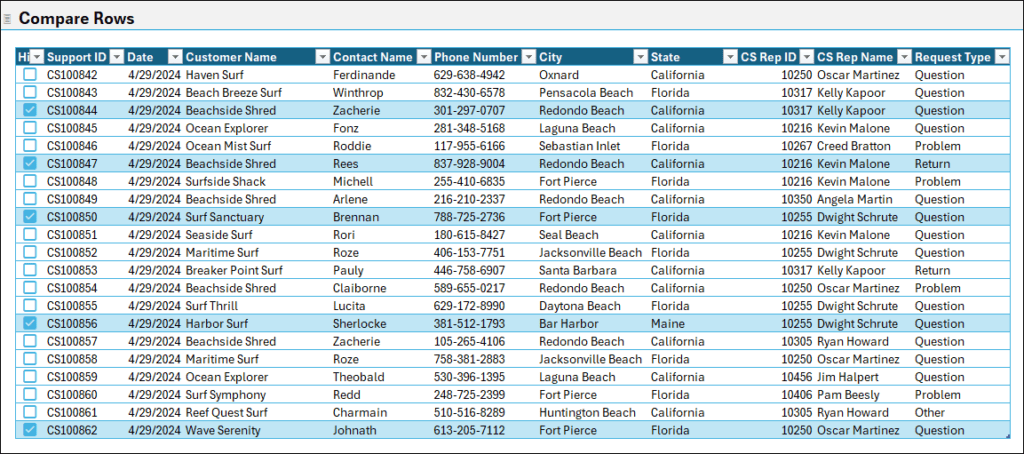
Make comparisons easy by highlighting entire rows when checkboxes are checked. This is done using conditional formatting, making specific rows stand out for review.
5. Filter to Compare Rows
Compare multiple rows by filtering checkboxes. Filter your list to show only checked items, allowing you to focus on specific data points for comparison.

6. Format Checked Items
Automatically format other cells when a checkbox is checked. For instance, change the font color to gray for completed tasks, helping to differentiate them from the remaining items.
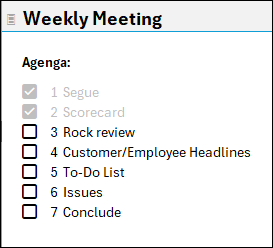
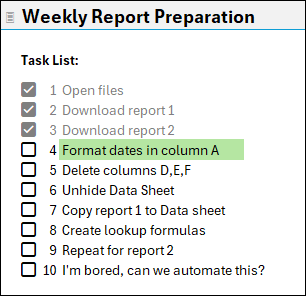
7. Highlight Next Item in List
Guide your progress by highlighting the next item in a list when the current one is checked. This method draws attention to what needs to be done next.
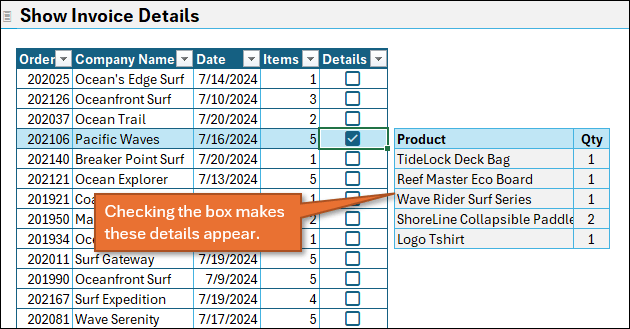
8. Show Details on a Table
Use checkboxes to reveal details in a table. For example, checking a box could display all line items associated with an order, using functions like FILTER and XLOOKUP.
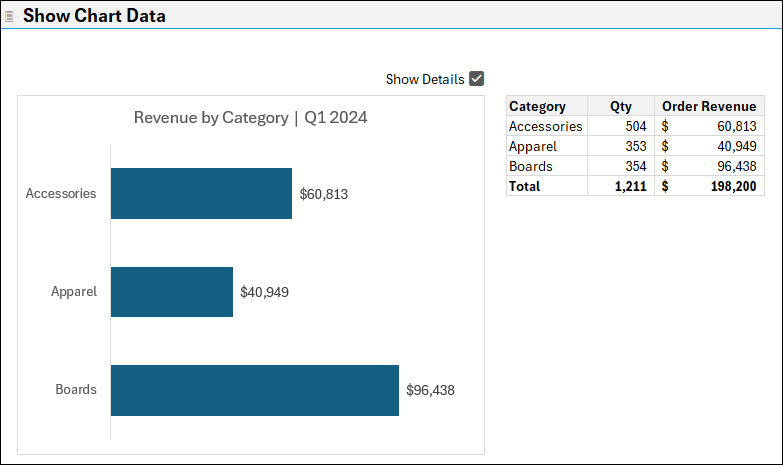
9. Show Details on a Chart
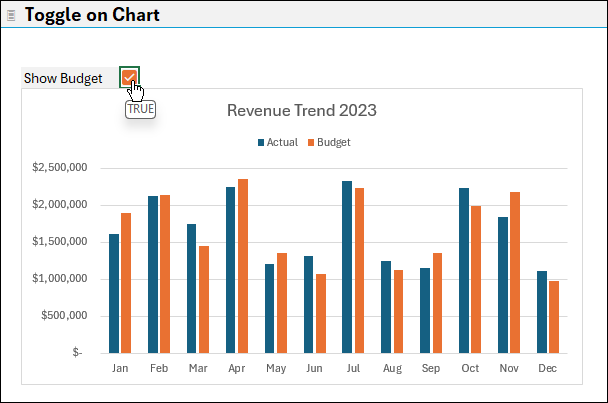
Similar to revealing details in a table, you can use checkboxes to show or hide data in a chart. This can help focus attention on specific metrics, like comparing revenue versus budget.
10. Counting Checkboxes
Easily count the number of checked boxes with a COUNTIF formula. You can use this for attendance tracking, inventory management, and more.
.png)
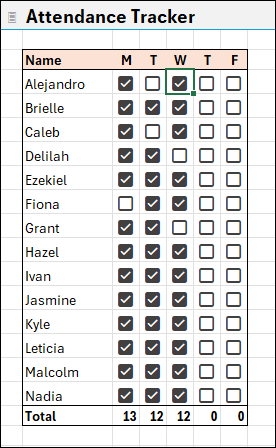
11. Attendance Tracker
Streamline attendance tracking by selecting multiple checkboxes at once. For example, check all present students with the space bar, and then uncheck any absentees with your mouse.
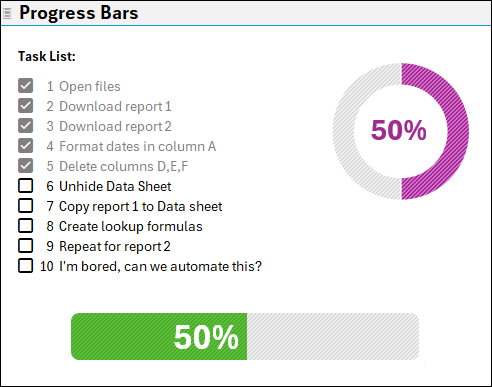
12. Progress Chart
Visualize your progress with charts linked to checklists. As items are checked off, the progress is reflected in either a bar or donut chart, giving you a visual summary of what's completed.
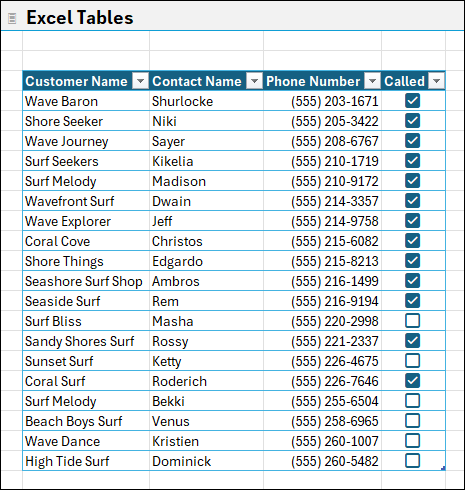
13. Excel Tables
Checkboxes are fully compatible with Excel tables. As you add new rows, the checkboxes automatically extend, making them a powerful tool for managing dynamic data sets.
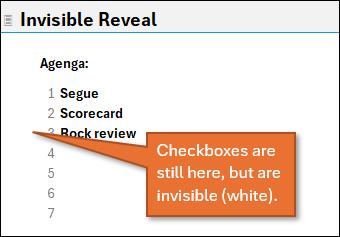
14. Reveal List and Invisible Reveal
Use checkboxes to gradually reveal a list during a presentation, keeping the audience engaged.
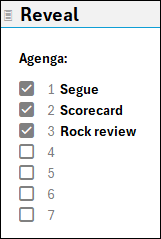
Alternatively, hide the checkboxes themselves for a cleaner look while maintaining functionality.
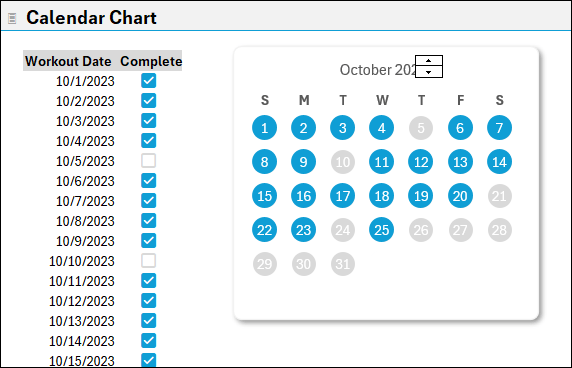
15. Calendar Chart
Link checkboxes to a calendar chart to track deadlines or progress visually. Checking an item highlights the corresponding date, providing an intuitive view of your schedule.
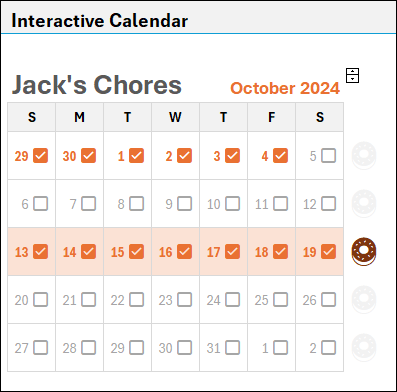
16. Interactive Calendar
Create an interactive calendar where entire weeks light up when all tasks are checked. This method is great for tracking weekly goals, with a reward or completion marker for fully checked weeks.
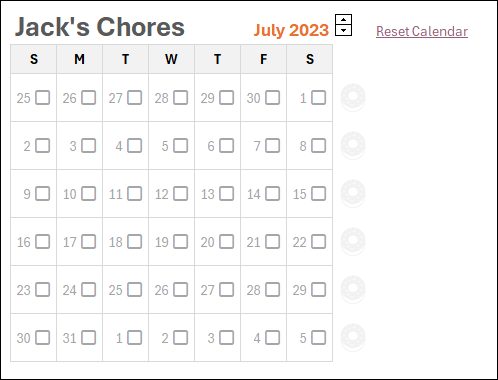
17. Reset Button
Quickly reset all checkboxes without using macros. Use a hyperlink to select the range of checkboxes, and then hit the space bar to clear them all at once.
18. Select All Button
Add a “Select All” button using a similar technique to the reset button, allowing users to check all boxes in a list simultaneously.
.png)
19. Toggle Chart Series
Control which data series appear in a chart by toggling checkboxes. For example, you can hide or show the budget line in a revenue versus budget chart, giving you a focused view of the data.
Final Tips for Using Excel's Checkboxes
Here are a few final tips to help you make the most of Excel's checkboxes:
Source: excelcampus.com

12/11/2025


