
- Training
- Service
- Promotion
- Schedule
- Testing Center
- News
- Contact
8/14/2020


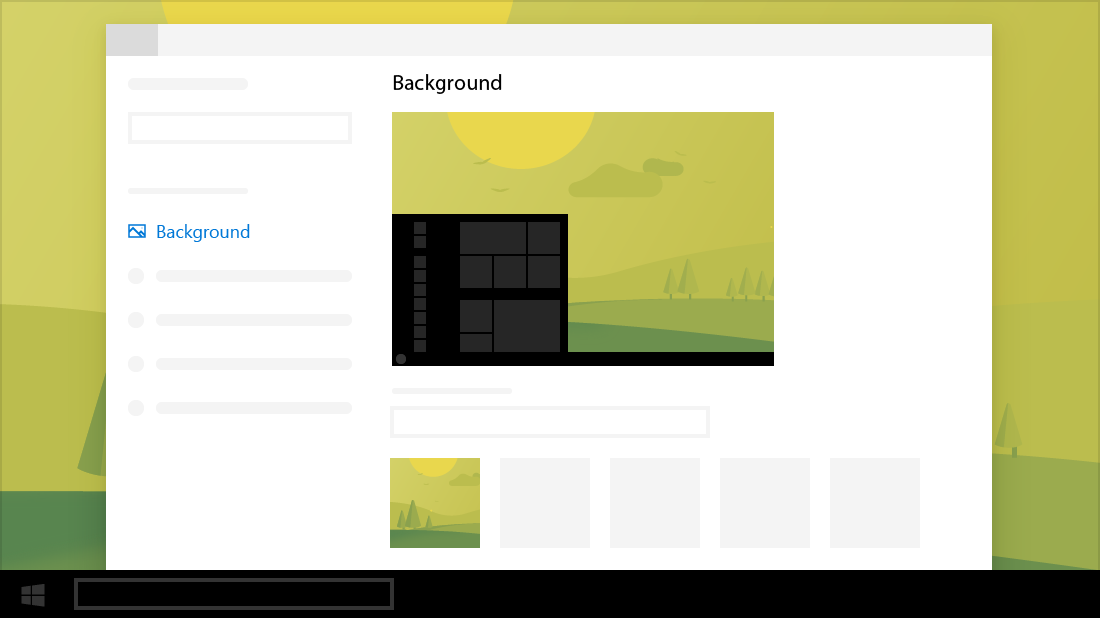
Tip 1 - Make a picture your background
Select Start > Settings > Personalization > Background . Under Background, select Picture > Browse, and then pick the one you want.
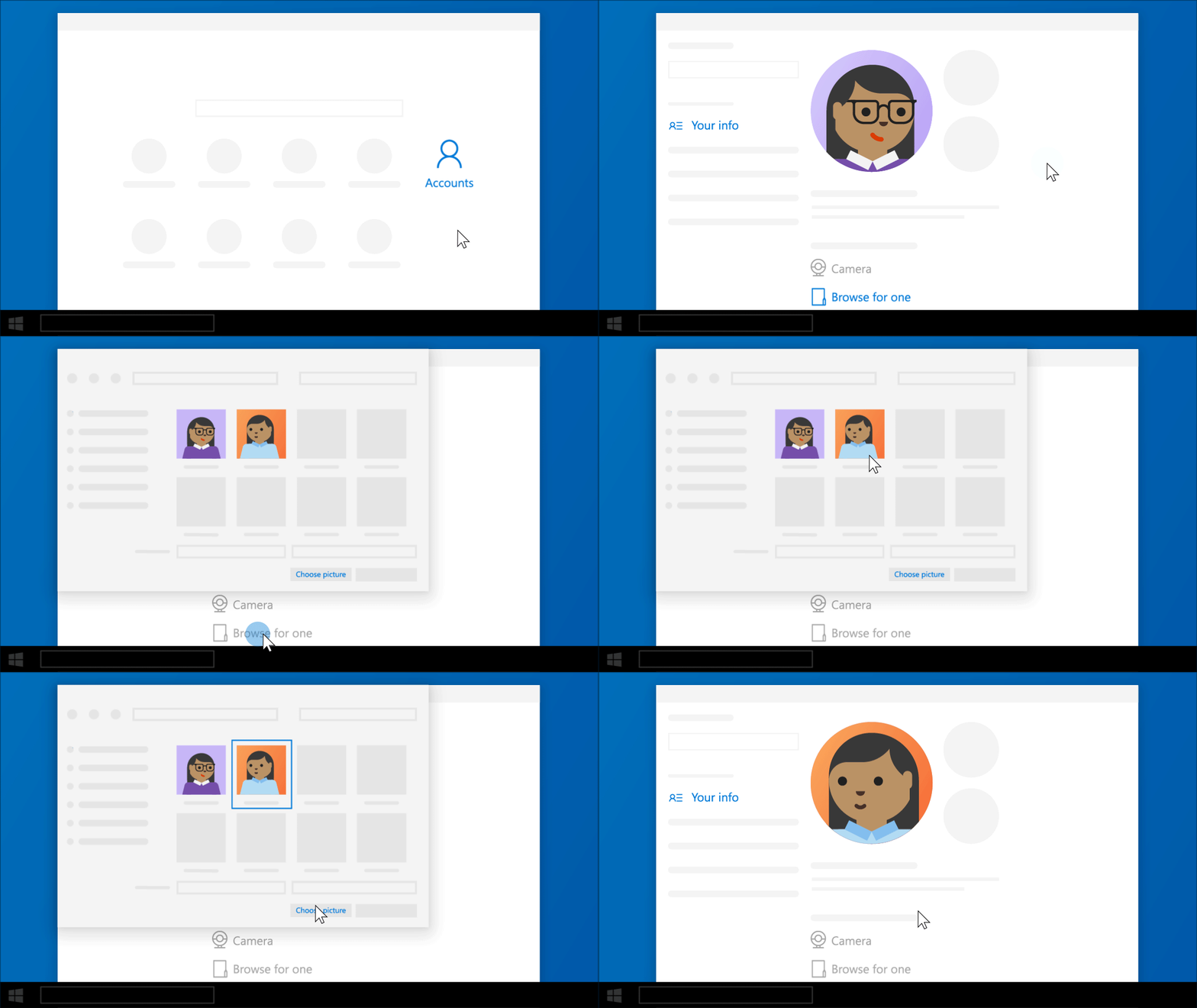
Tip 2 – Your account, your picture
Choose the picture you want to show for your account on the sign-in screen, Start menu, and more. Select Start > Settings > Accounts > Your info. Under Create your picture, select Camera or Browse for one.
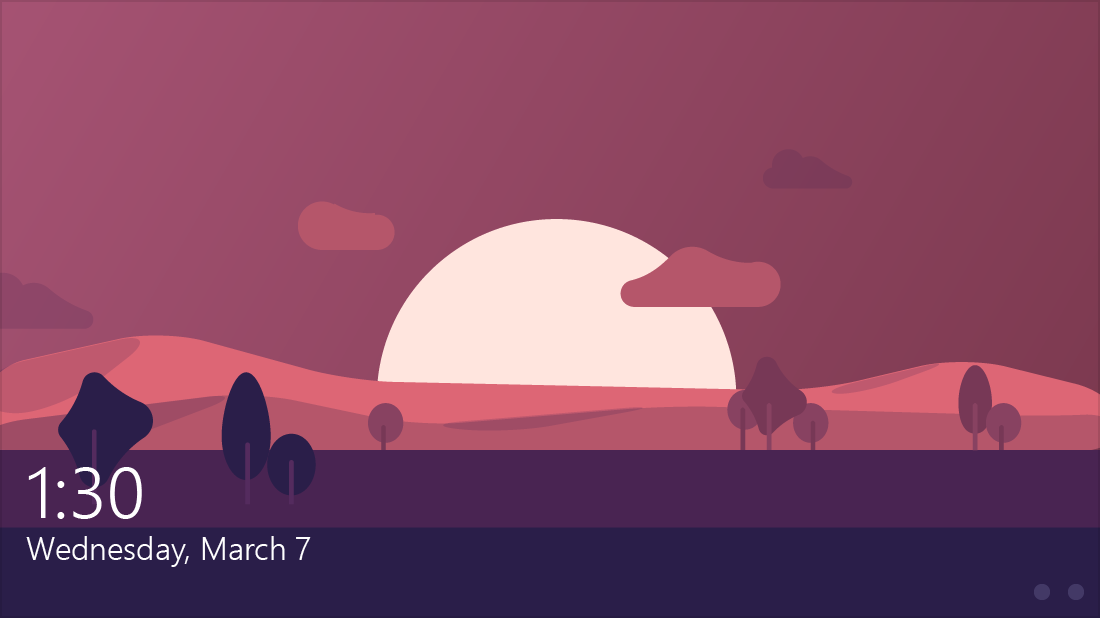
Tip 3 - Personalize your lock screen
Select Start > Settings > Personalization > Lock screen , and then change your settings to get the look and info you want.
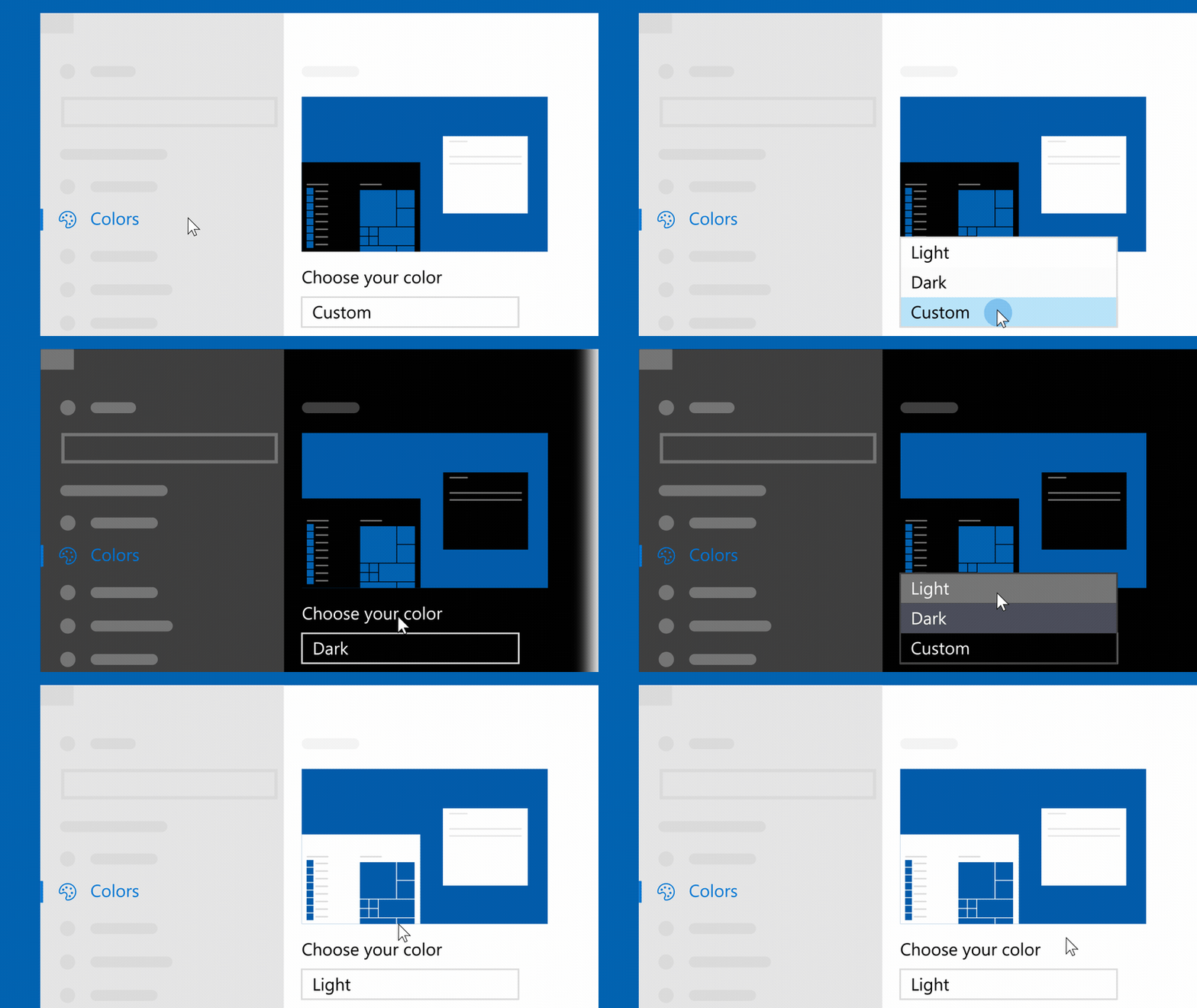
Tip 4 - Give apps a sleek new look
Make your apps stand out by switching to Light or Dark mode. Select Start > Settings > Personalization > Colors. Under Choose your color, select either Light or Dark mode.
Tip 5 - Create a theme
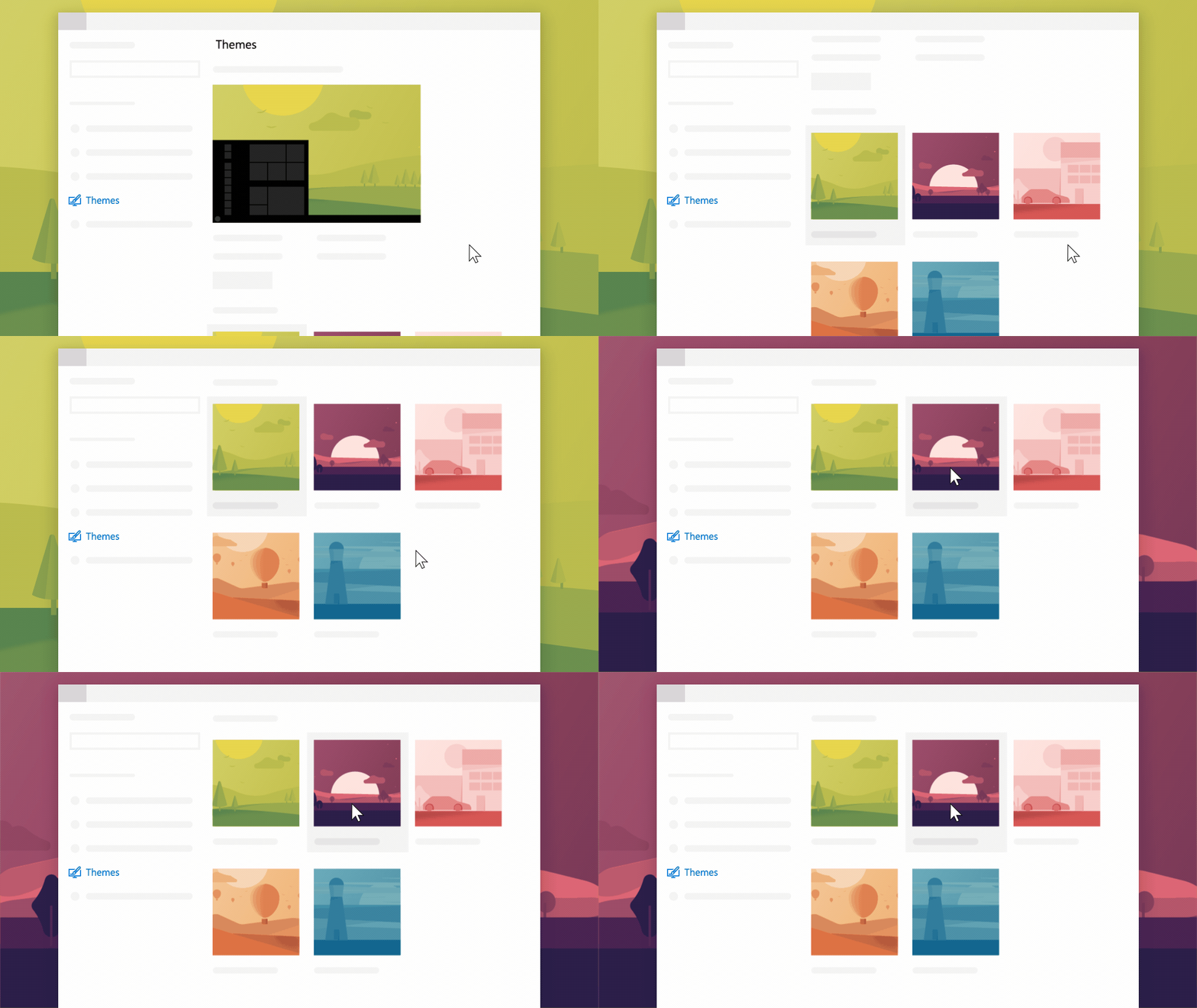
Show your personality on your PC. Select Start > Settings > Personalization > Themes to get started.
Tip 6 - Add flair with a theme
Get free and premium themes for your PC– sets of wallpapers, sounds, and accent colors in the Microsoft Store. Spiff up your desktop with cute animals, beautiful nature shots, creative illustrations, or images from your favorite games.
Tip 7 - Customize your desktop color
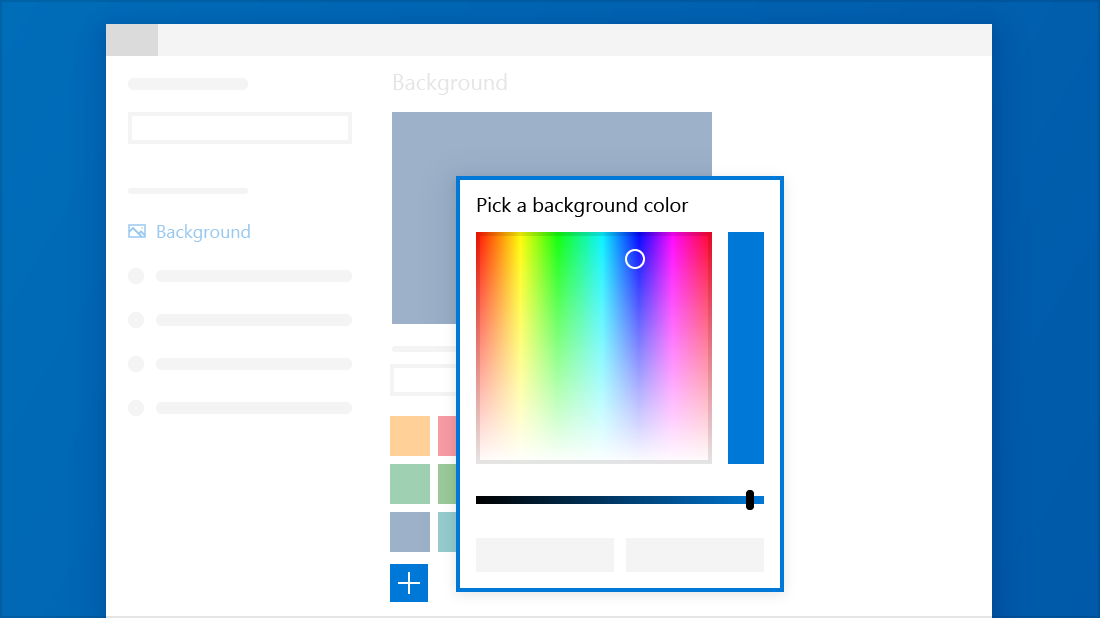
Pick the perfect color for you. Select Start > Settings > Personalization > Background. On the right, under Background, select Solid color. Then select Custom color and create your perfect hue.
Tip 8 - Pick your own accent color
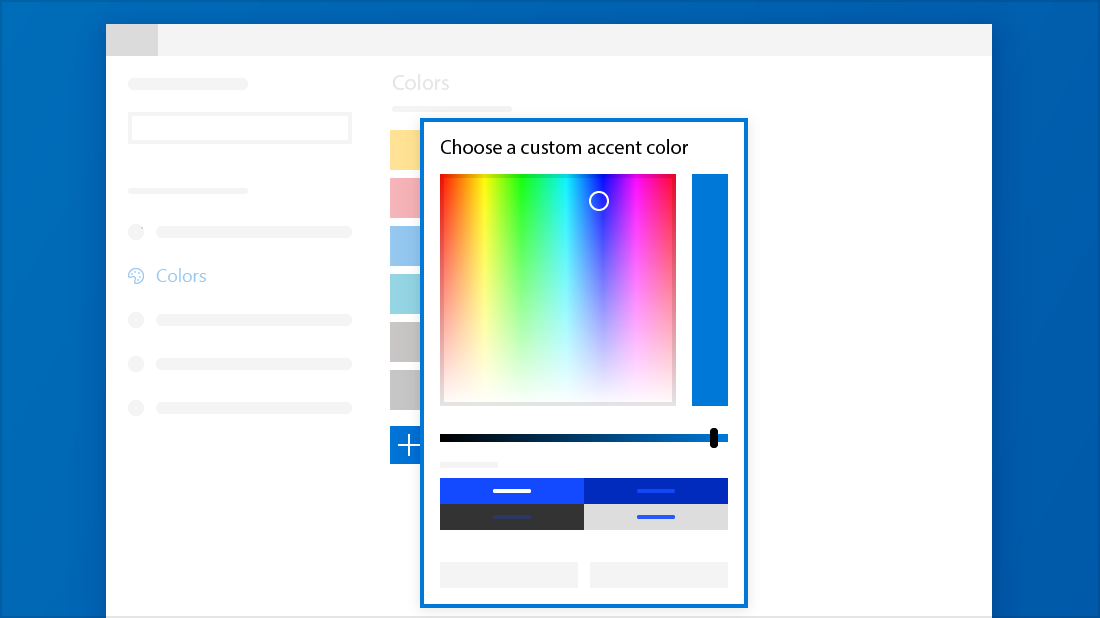
Select Start > Settings > Personalization > Colors, and then choose an accent color. Select Custom color to fine-tune your own personal hue.
Tip 9 - Let Windows pick your accent color
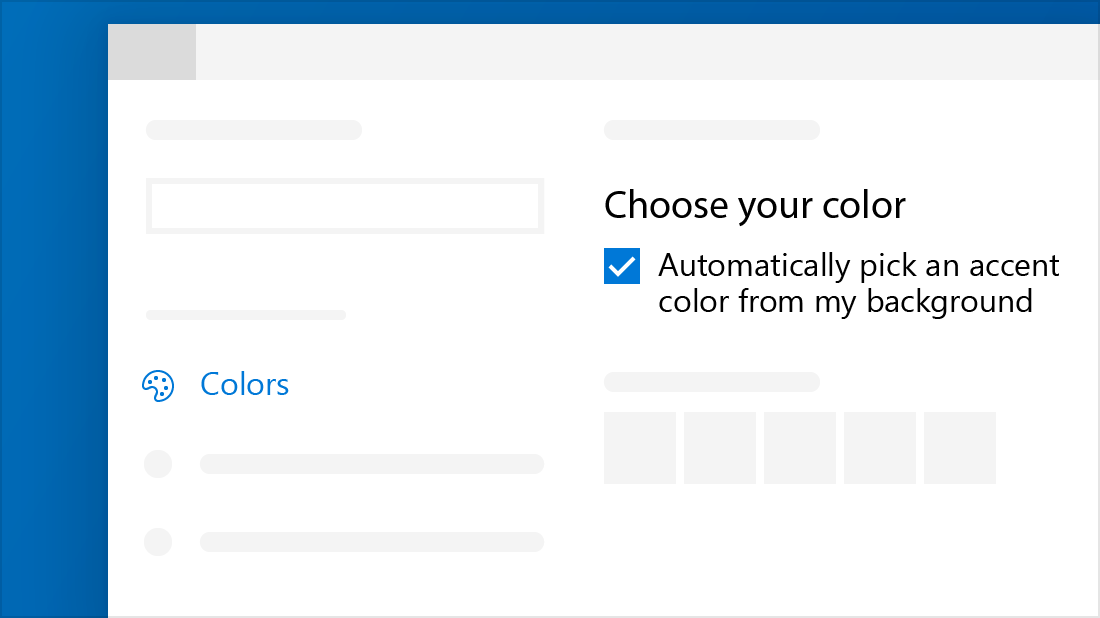
Select Start > Settings > Personalization > Colors , and then select the Automatically pick an accent color from my background check box.
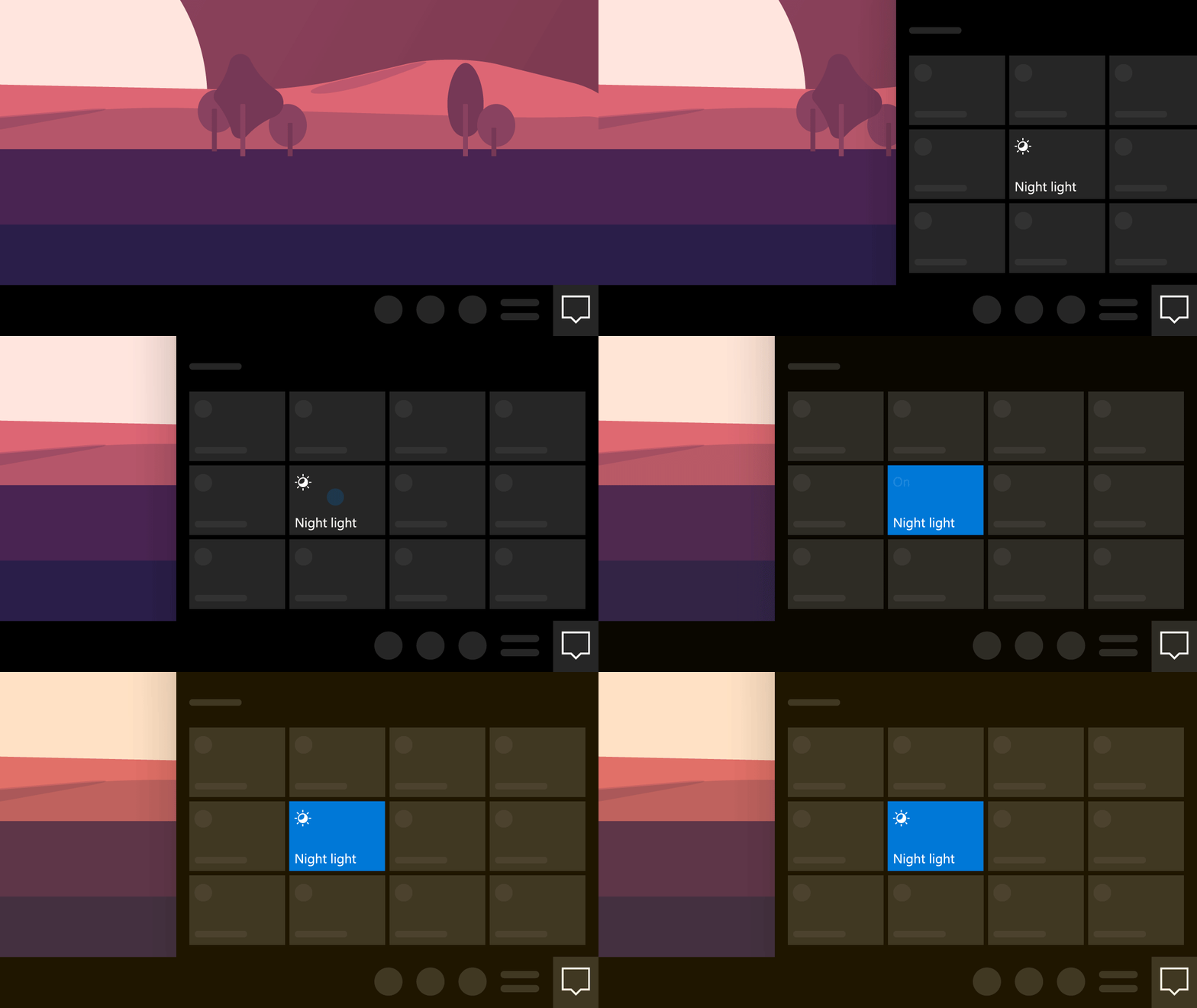
Tip 10 - Sleep tight with night light
Rest your weary eyes at night and make it easier to get to sleep. Select action center > Night light to go easy on your eyes with warmer colors.
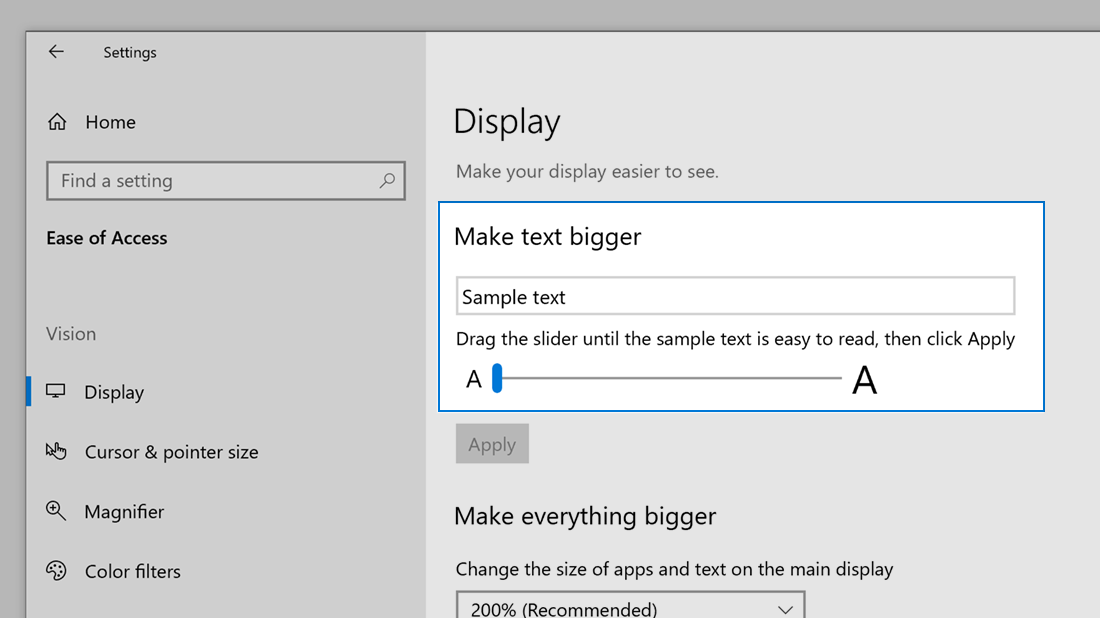
Tip 11 - Make things on your screen easier to see
To make just the text on your screen bigger, select Start > Settings > Ease of Access > Display , then adjust the slider under Make text bigger. To make everything bigger, choose an option from the drop-down menu under Make everything bigger.
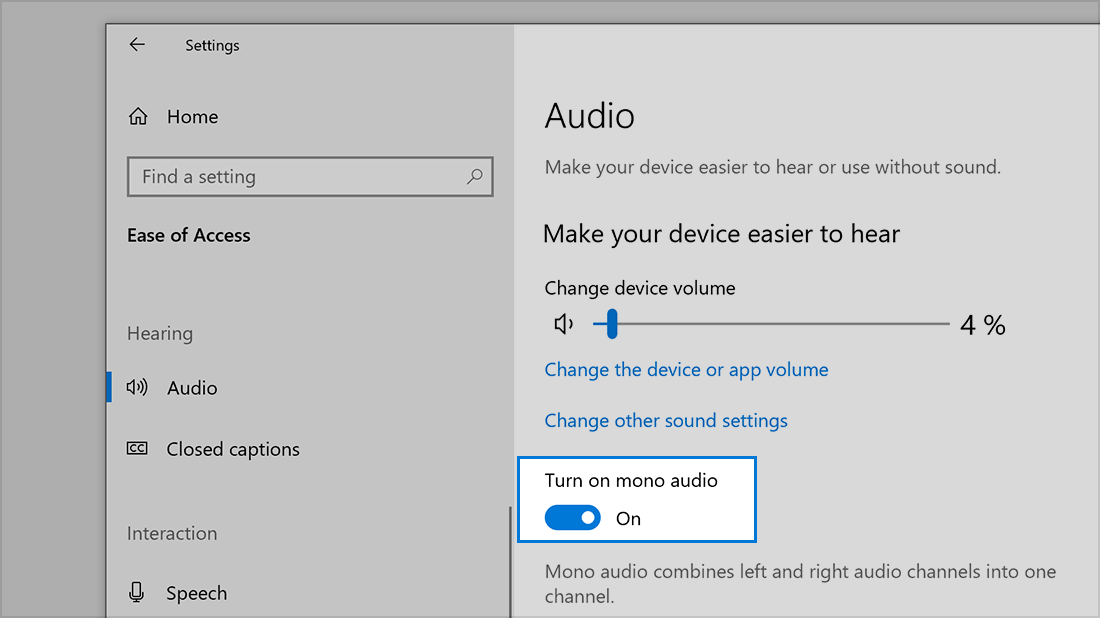
Tip 12 - Hear everything in one ear
Select Start > Settings > Ease of Access > Audio , then switch on the toggle under Turn on mono audio. If you're using one earbud or something similar, audio will be combined into one channel.
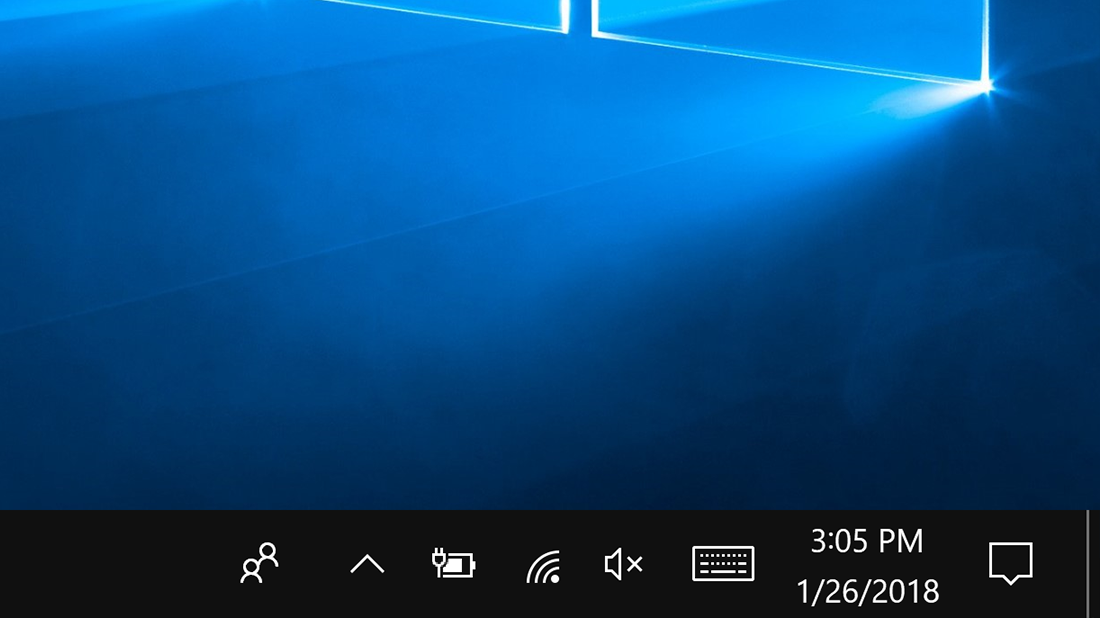
Tip 13 - Clean up taskbar clutter
Select Start > Settings > Personalization > Taskbar, and then choose Select which icons appear on the taskbar.
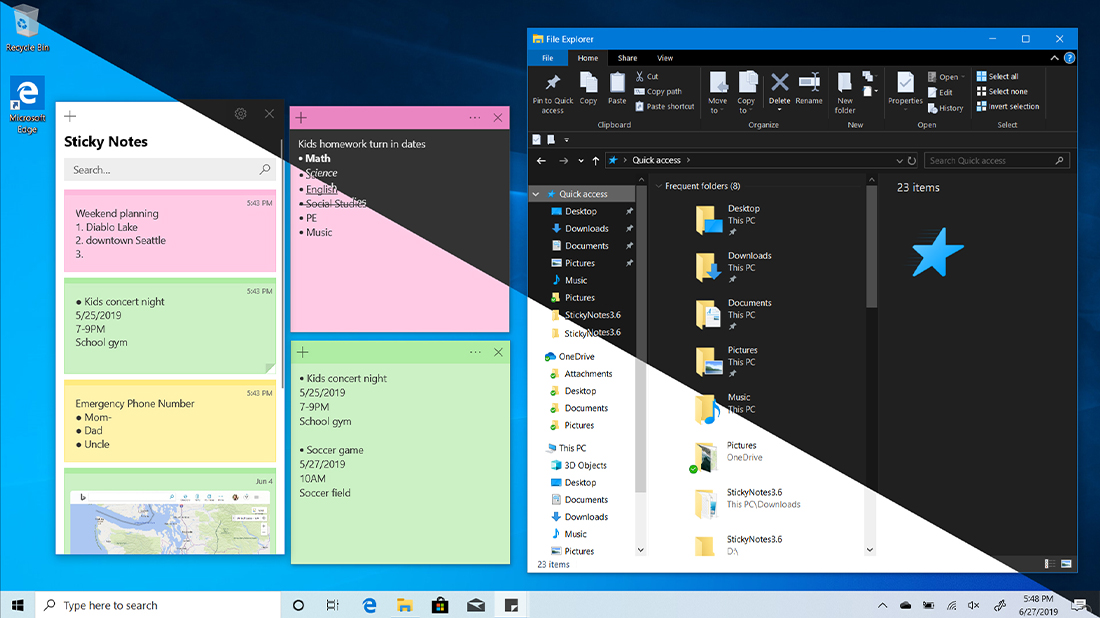
Tip 14 - Choose light or dark theme
Personalize your PC and reduce eye strain with Windows 10 light and dark themes.
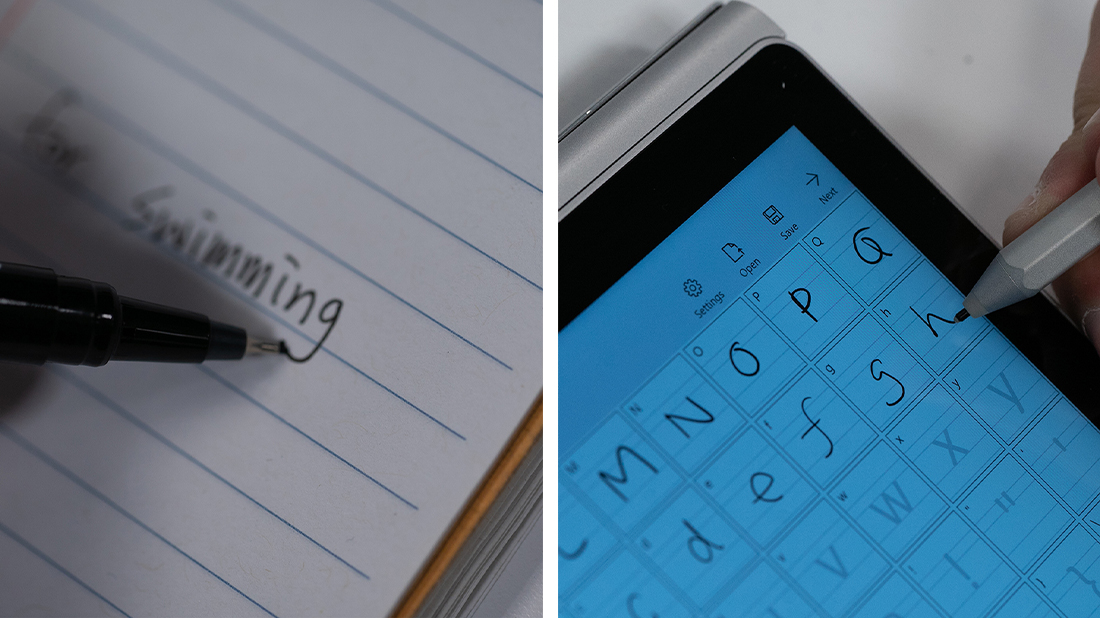
Tip 15 - Create a custom font with your handwriting
Create a font with Microsoft Font Maker, a digital pen, and your own handwriting.
Source: Microsoft

12/11/2025


