- Training
- Service
- Promotion
- Schedule
- Testing Center
- News
- Contact


Starting this month, we on the Excel team bring you a regular recap of the key features and improvements now available across Excel for the web, Windows, Mac, and mobile.
| Excel for the web | Excel for Windows | Excel for Mac | ||||
Excel for the web
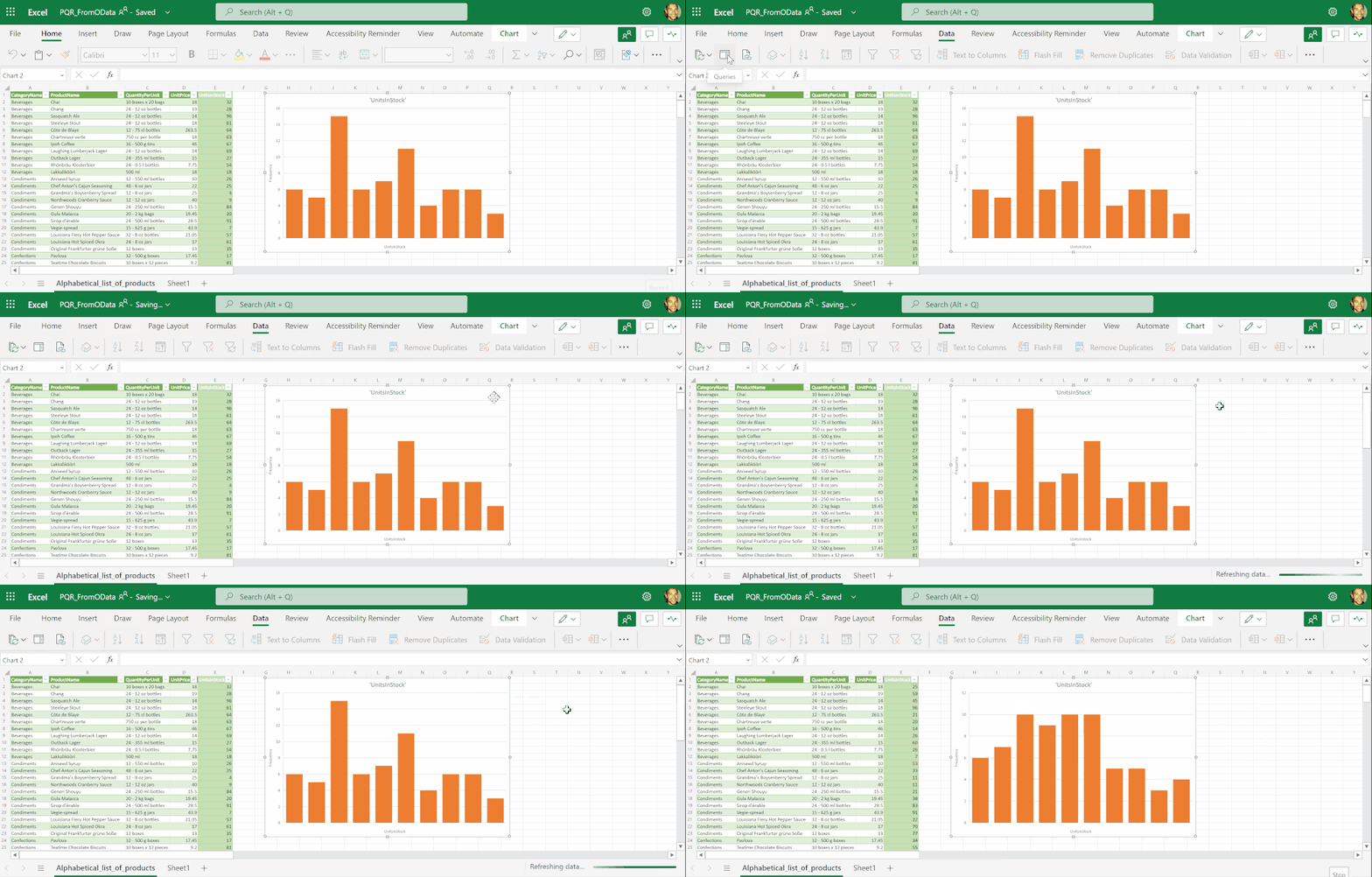
Power Query refresh for selected data sources
By far one of the most popular requests, we have received from Excel users, Power Query refresh is now available for queries sourcing data from the current workbook and anonymous OData feeds.
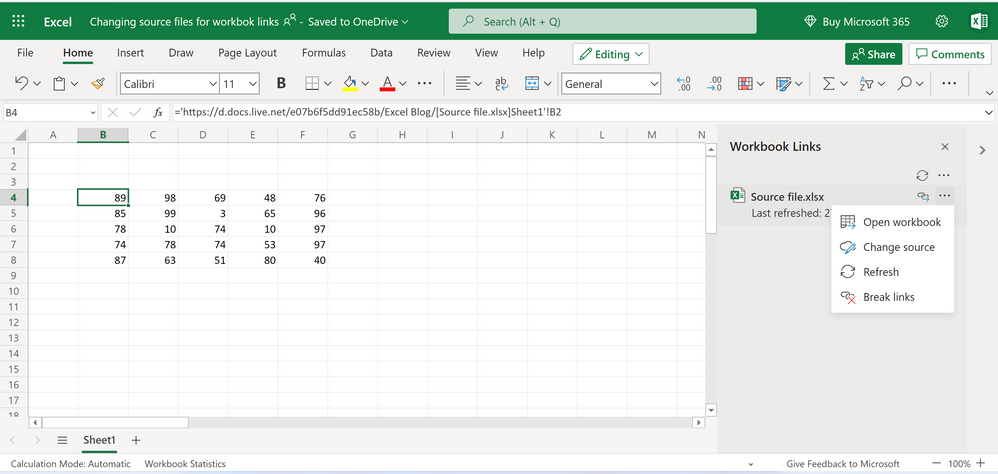
Changing source file for workbook links
In addition to open, refresh, and break links, you can now change the source file in workbook links in Excel for the web.
Excel for Windows
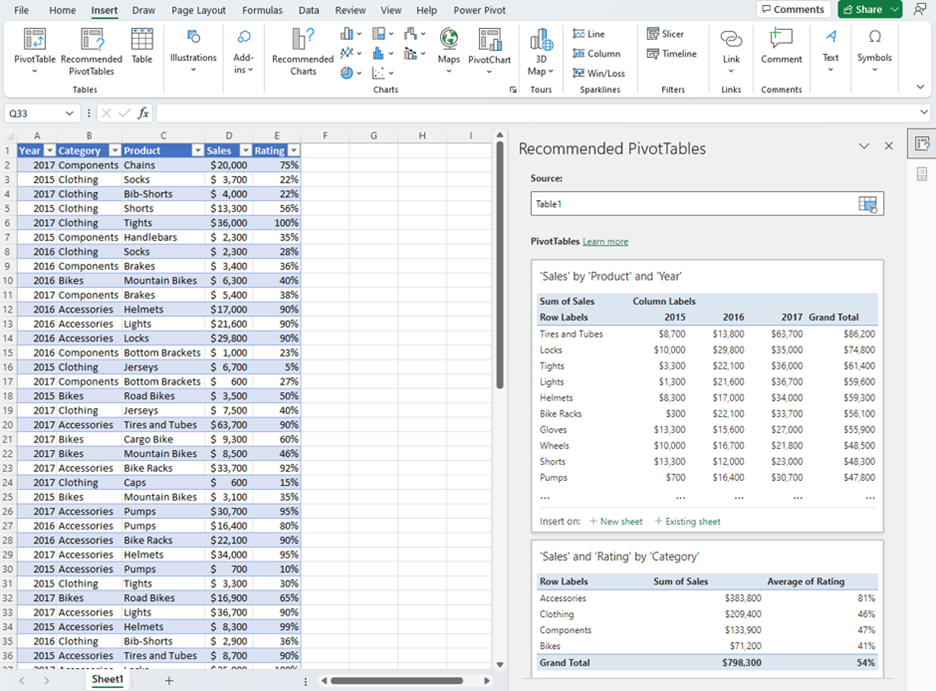
Improved recommended PivotTable experience (Insider Beta)
Recommended PivotTables are now more intelligent, utilizing the same technology as the Analyze Data feature. A redesigned panel makes it easier to view all of your options, and simpler to change your data selection before inserting a recommended PivotTable.
Faster recalc on resource constrained devices (Current Channel)
On resource constrained devices, Excel has now by default made recalculation more optimal by running calculation on a single thread. In most cases, users should see noticeably faster calculation on these devices. Note that in some cases that require compute-intensive calculation, users may want to consider overriding this default by setting Number of calculation threads to “2.”
Faster AutoFilter (Monthly Enterprise Channel)
Users should now find AutoFilter noticeably faster! Improvements were made to reduce memory usage and optimize calls made by the filter’s comparison algorithm. The optimizations should be especially noticeable on low-end devices that have less memory or slower CPU-memory throughput.
Dataflow and Dataverse connectors (Monthly Enterprise Channel and Current Channel)
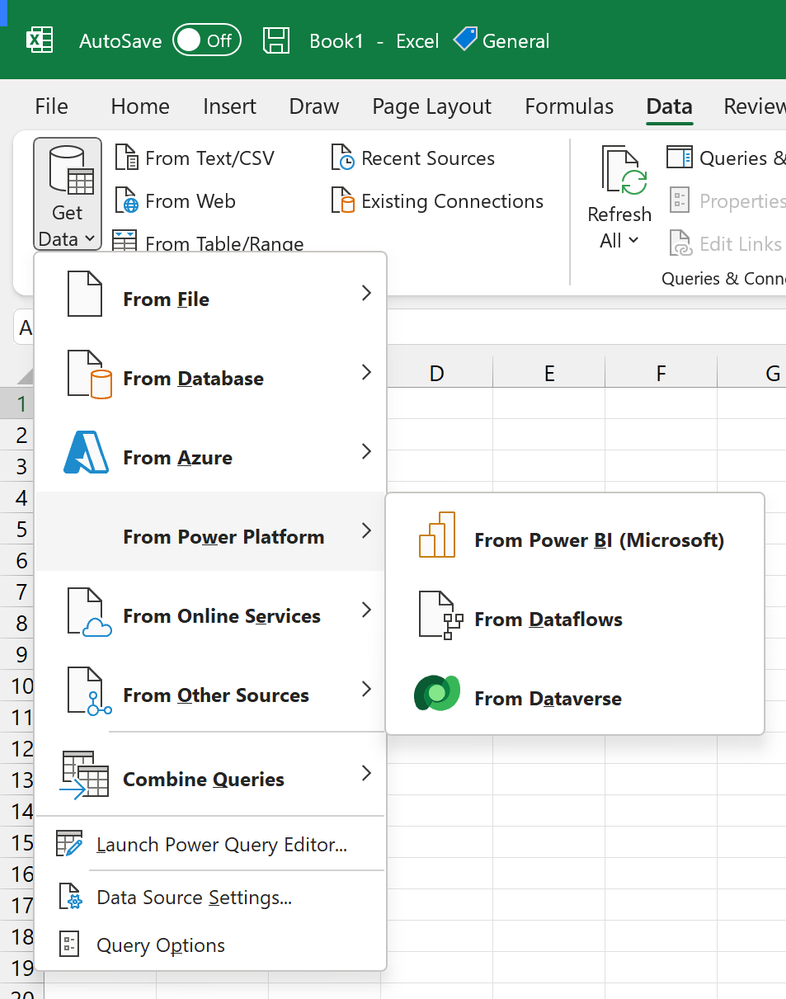
Dataflows are a self-service, cloud-based, data preparation technology. Dataflows enable customers to ingest, transform, and load data, and are featured in multiple Microsoft products. With the new From Dataflows connector in Excel you can now connect and import data from Dataflows directly into Excel. Users are able to immediately load data into Excel or use Power Query to transform the data prior to loading it into Excel.
Dataverse is a secure and cloud-based storage for your data. Dataverse lets you store a business-focused definition of your organization's data for use within applications. With the new From Dataverse connector in Excel you can now connect and import data from a Dataverse environment into Excel. Users are able to immediately load data into Excel or use Power Query to transform the data prior to loading it into Excel.
To start using these connectors, go to Data tab on the Excel ribbon, click Get Data, go to From Power Platform category, and select From Dataflows or From Dataverse options.
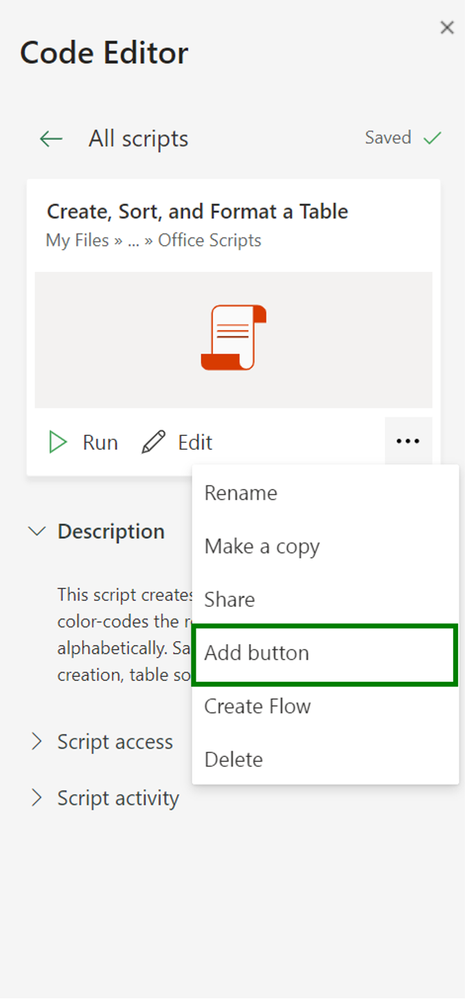
Running Office Scripts from a workbook button (Current Channel)
Delivering on a highly requested feature to expand on our recently introduced script buttons feature, we're excited to share that you now also have the same button to run Office Scripts in Excel for Windows.
Excel for Mac
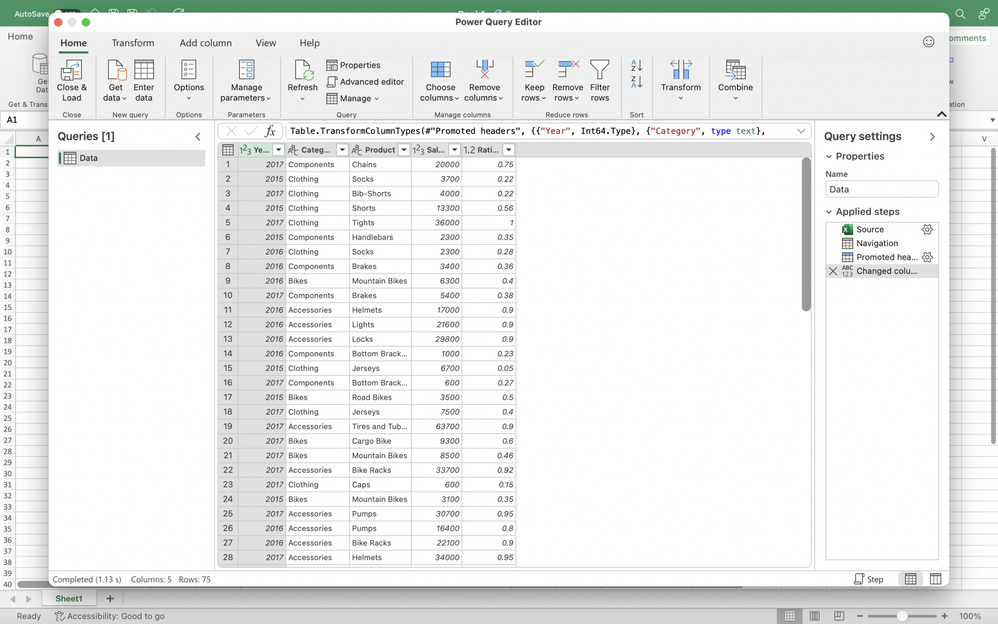
Shaping data with Power Query Editor (Insider Beta)
We've received many requests to add the ability to transform data using the Query Editor, which would allow users to enjoy the full Power Query experience in Excel for Mac. We are happy to let you know that you can now clean and shape your data with hundreds of transformations available in Power Query Editor in Excel for Mac.
Faster AutoFilter
Users should now find AutoFilter noticeably faster! Improvements were made to reduce memory usage and optimize calls made by the filter’s comparison algorithm. The optimizations should be especially noticeable on low-end devices that have less memory or slower CPU-memory throughput.
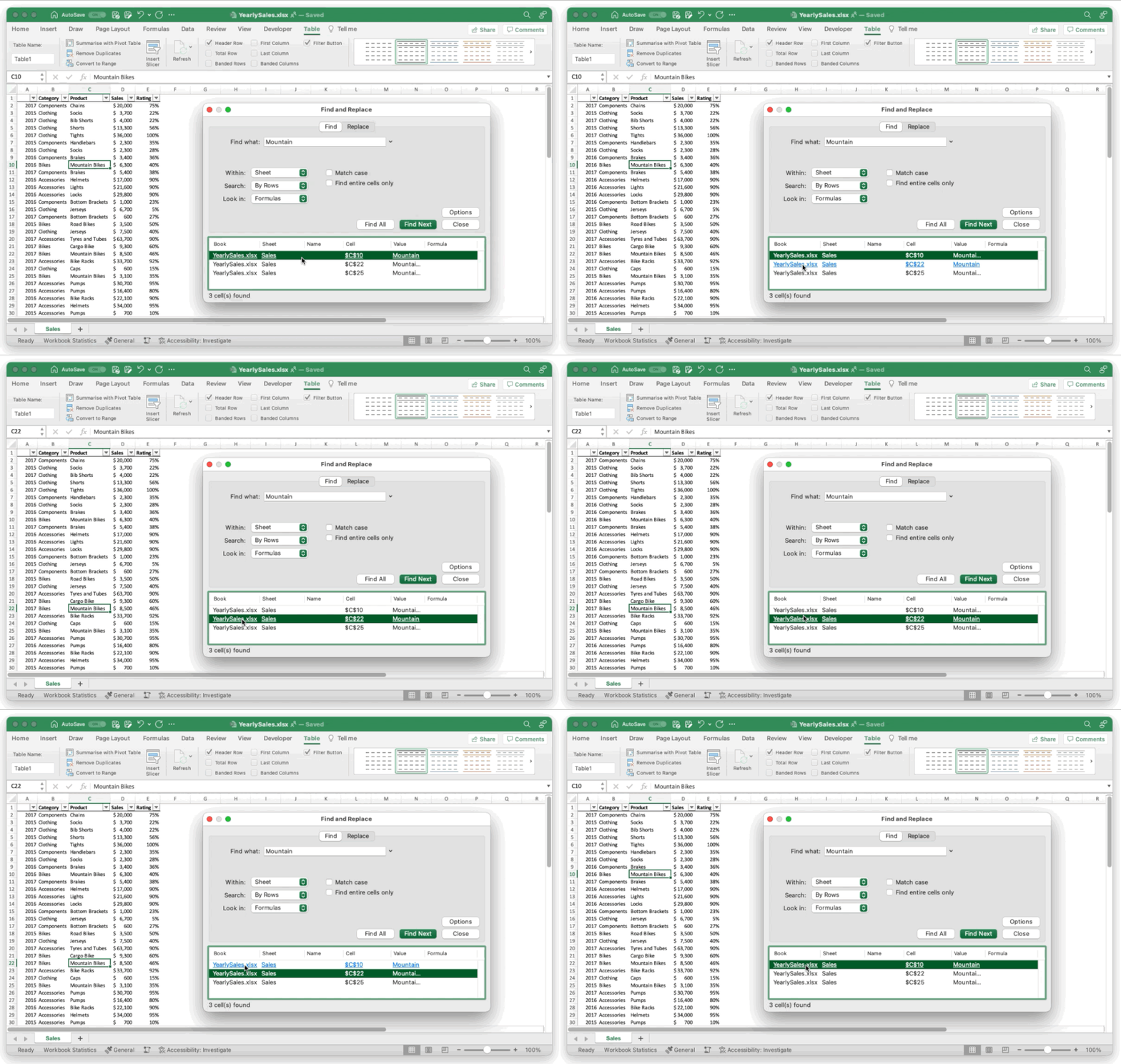
Improved Find dialog and Find All
Excel users should now find the Find dialog in Excel for Mac more consistent with that in Excel for Windows including the option to Find All.
Source: techcommunity.microsoft.com