- Training
- Service
- Promotion
- Schedule
- Testing Center
- News
- Contact


Welcome to the August 2023 update. This month, we are incredibly excited to announce the public preview of Python in Excel, which is gradually rolling out to users running Beta Channel on Windows – Excel for Windows version 2309 (Build 16818.20000) or later. Watch this YouTube video by Excel MVP Leila Gharani and this YouTube playlist by Excel MVP Carlos Barboza, and sign up to be notified about future availability for Python in Excel.
Also rolling out to Beta Channel users on Windows are Stale Value Formatting and Monospaced Font in the formula bar. Furthermore, Current Channel users on Windows will now have Simplified Sharing Across M365, Improved Save As/Discard Dialog, and Power BI Connected Tables.
1. Python in Excel (Insiders Beta)
Python in Excel makes it possible to natively combine Python and Excel analytics within the same workbook - with no setup required. With Python in Excel, you can type Python directly into a cell, the Python calculations run in the Microsoft Cloud, and your results are returned to the worksheet, including plots and visualizations.
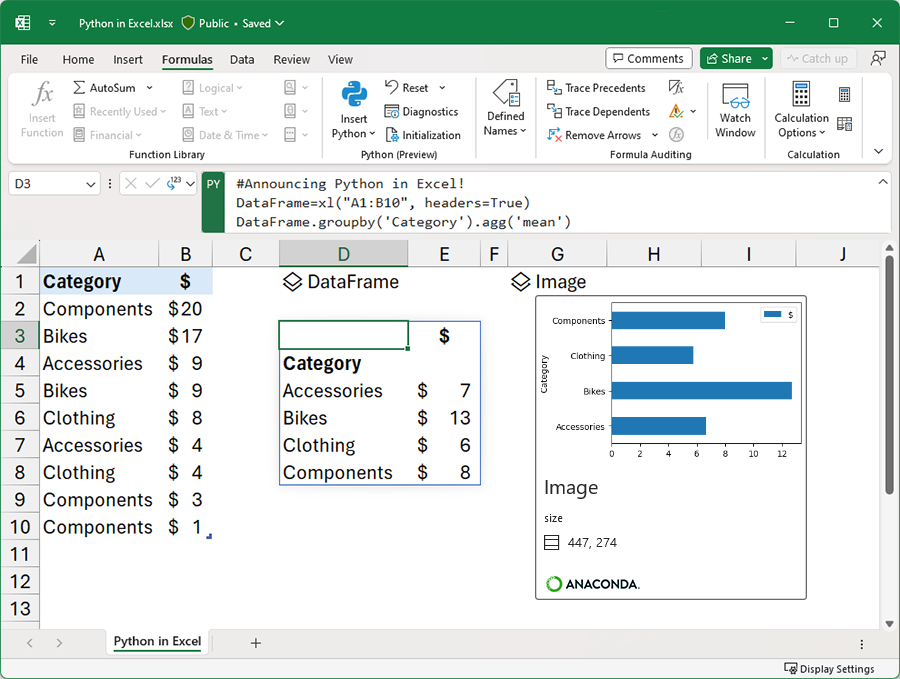
Seamlessly aggregate and visualize your data with Python in Excel
2. Stale Value Formatting (Insiders Beta)
Manual calculation mode suspends calculations, which means that the values in cells can become out of date. We refer to these as being stale. When you edit a cell in a spreadsheet, not all cells become stale, just the ones that depend on your change. Excel tracks stale cells internally, however, there's been no way to see which cells are pending calculation.
With this update, we show these stale cells by striking them out. That way you know not to rely on them until they are calculated.

Stale Value Formatting Demo
3. Monospaced Font in formula bar (Insiders Beta)
Monospaced font is a type of font where each character has the same width, regardless of its shape or style. This means your formulas will be aligned and spaced evenly, making them easier to read and debug.
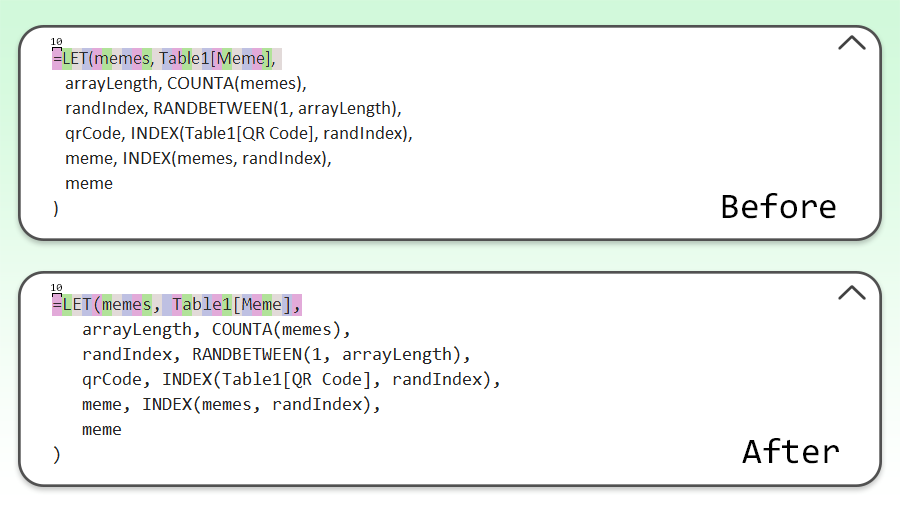
Monospaced Formula Bar
4. Power BI Connected Tables
A new Insert Table option is rolling out for the Power BI Datasets pane in Excel. It enables users to create a connected table directly in Excel. This streamlines the workflow of adding data and is friendlier to more Excel users.
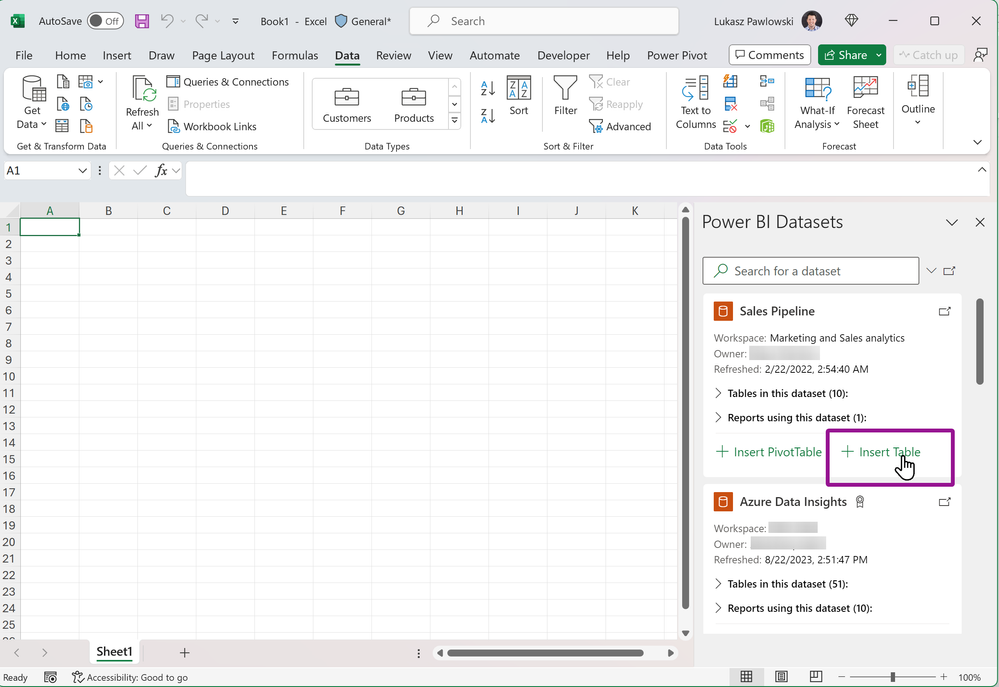
Power BI Connected Tables
5. Improved Save As/Discard Dialog
The "Save As/Discard" dialog now includes additional information like when you last saved your changes and who else has made changes.
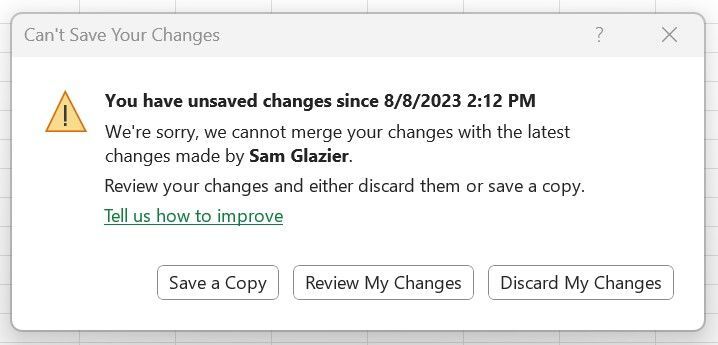
Improved Save As/Discard Dialog
6. Simplified Sharing across Microsoft 365
We've simplified the sharing experience across Microsoft 365 applications on the web, desktop, and mobile devices. When you click the "Share" button, the Share Dialog box pops up, where you will be able to email a link, copy a link, share files externally, manage access, and share sensitive files – streamlined and free of distractions.
7. Access and Explore Office Add-Ins
There’s a new button on the Home tab you can use to easily find, install, and access Office add-ins in Word, Excel, and PowerPoint.
Check if a specific feature is in your version of Excel.
Source: techcommunity.microsoft.com