- Training
- Service
- Promotion
- Schedule
- Testing Center
- News
- Contact


The Python Editor is a new addition to Excel Labs that allows you to write and edit Python formulas in Excel using a dedicated code editor with similar capabilities as those available in Python notebook environments. This is an experimental release to get early feedback, so we develop Excel to be the most useful for you. The Python Editor is designed to complement the Python in Excel experience with an editing surface optimized for more complex and longer Python code snippets.
Benefits
The Python Editor offers several benefits when writing and editing Python formulas in Excel.
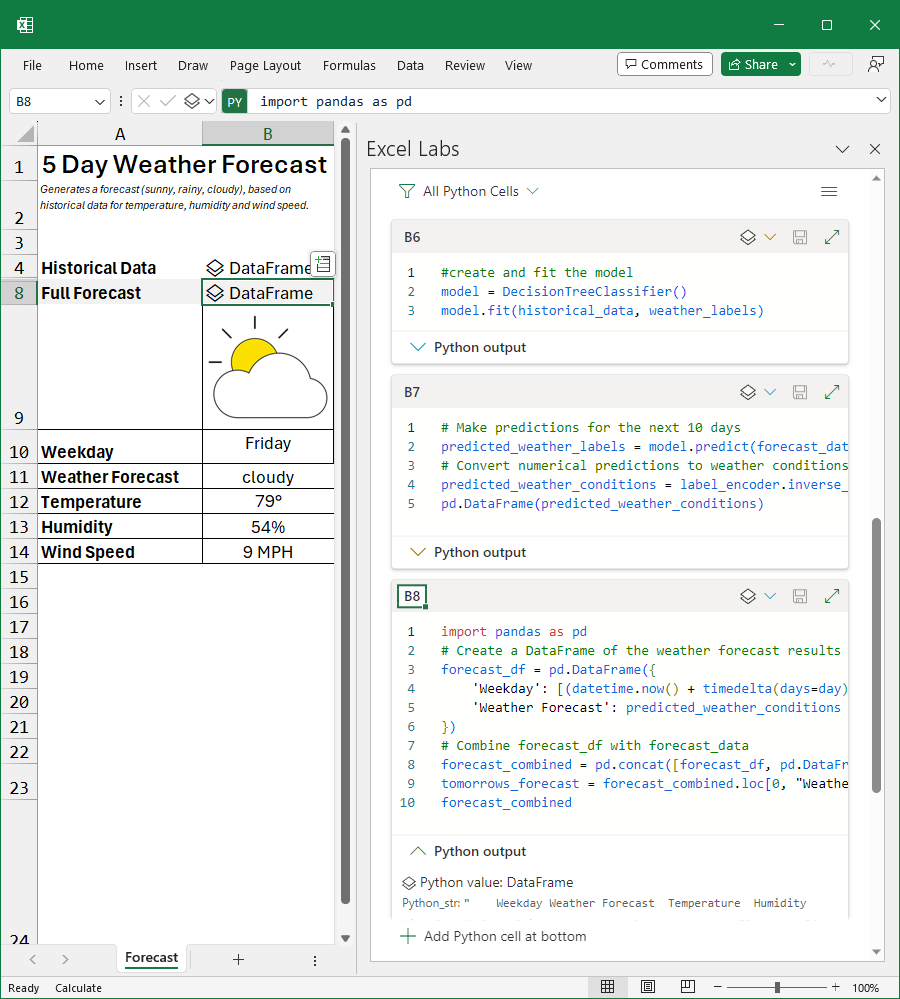
View the flow of code execution with results
The Python Editor shows Python cells in execution order in addition to the output of each cell’s code, which can help you debug and understand your code. This is useful because Python cells within the Excel grid execute in row major order.
Built for longer sections of code
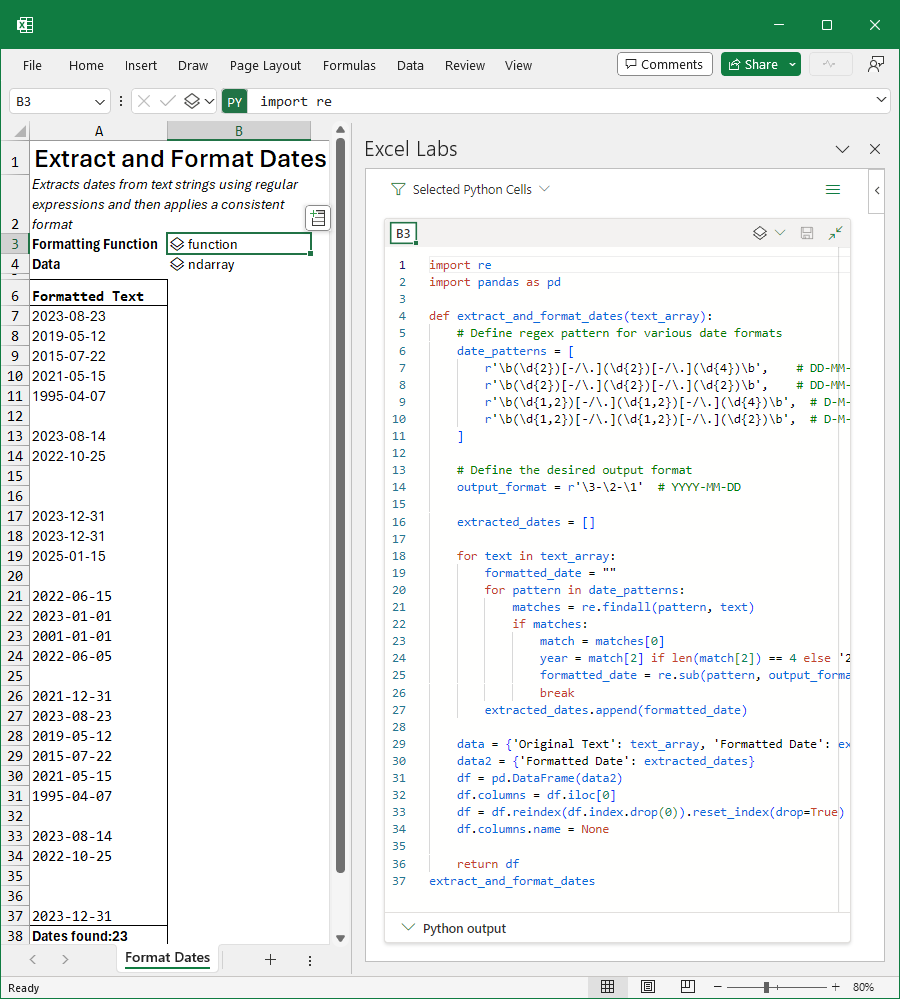
The Python Editor provides a new way to create and edit your Python code, offering more flexibility when working with longer scripts.
Standard Visual Studio Code Features
The Python Editor uses some of the same components that power Visual Studio Code and supports many of the features that Visual Studio Code offers for Python development, such as IntelliSense, formatting, code completion, and syntax highlighting.
Flexibility for intermittent coding workflows
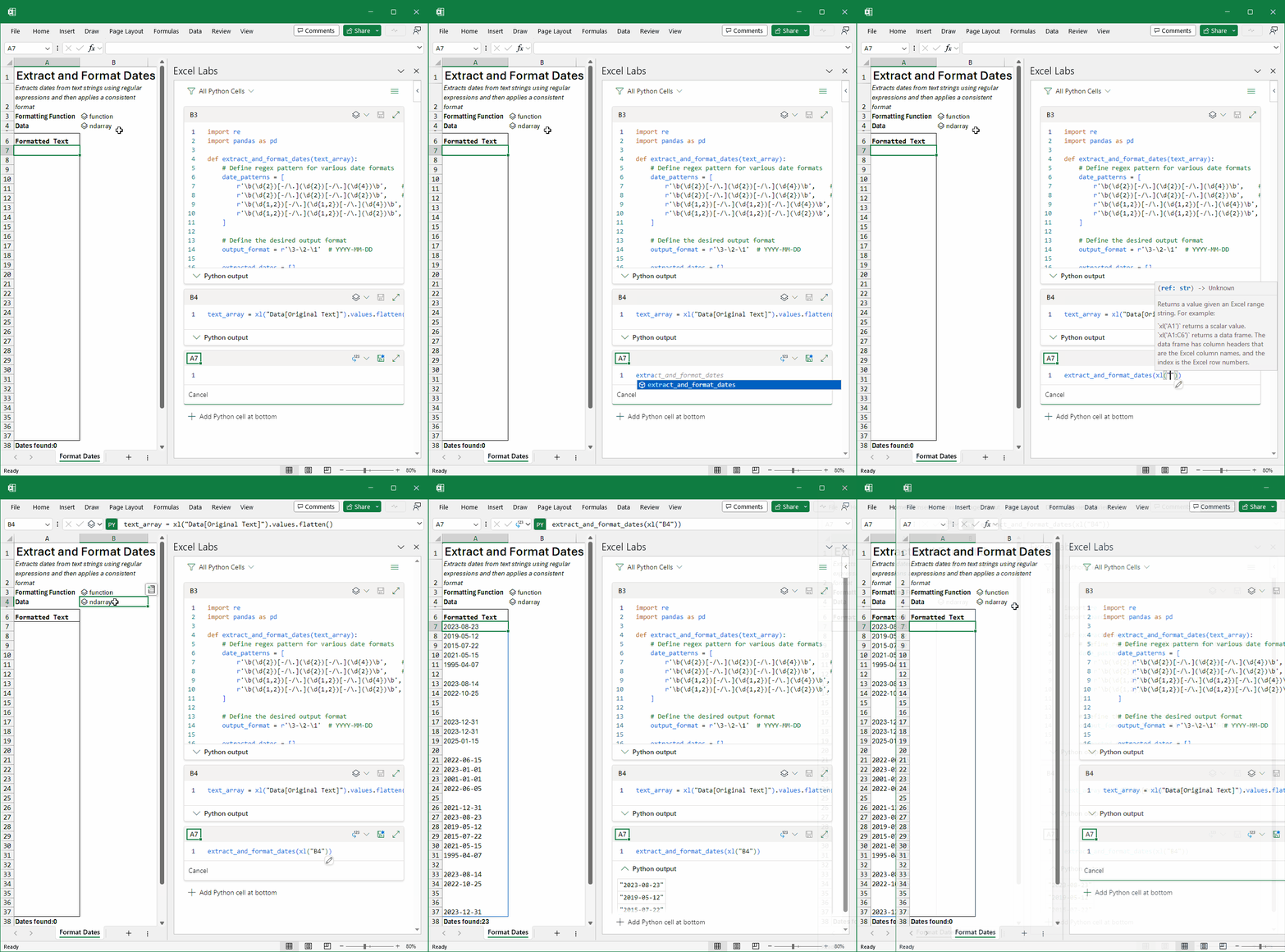
The Python Editor allows you to write some code, click elsewhere in the app, and not commit the code to Excel until you are happy with it. This gives you more flexibility and control over when and how you apply your code to your workbook. Additionally, when in manual recalc mode, editing and committing from the Editor will calculate just that cell (like a notebook) providing a faster feedback loop.
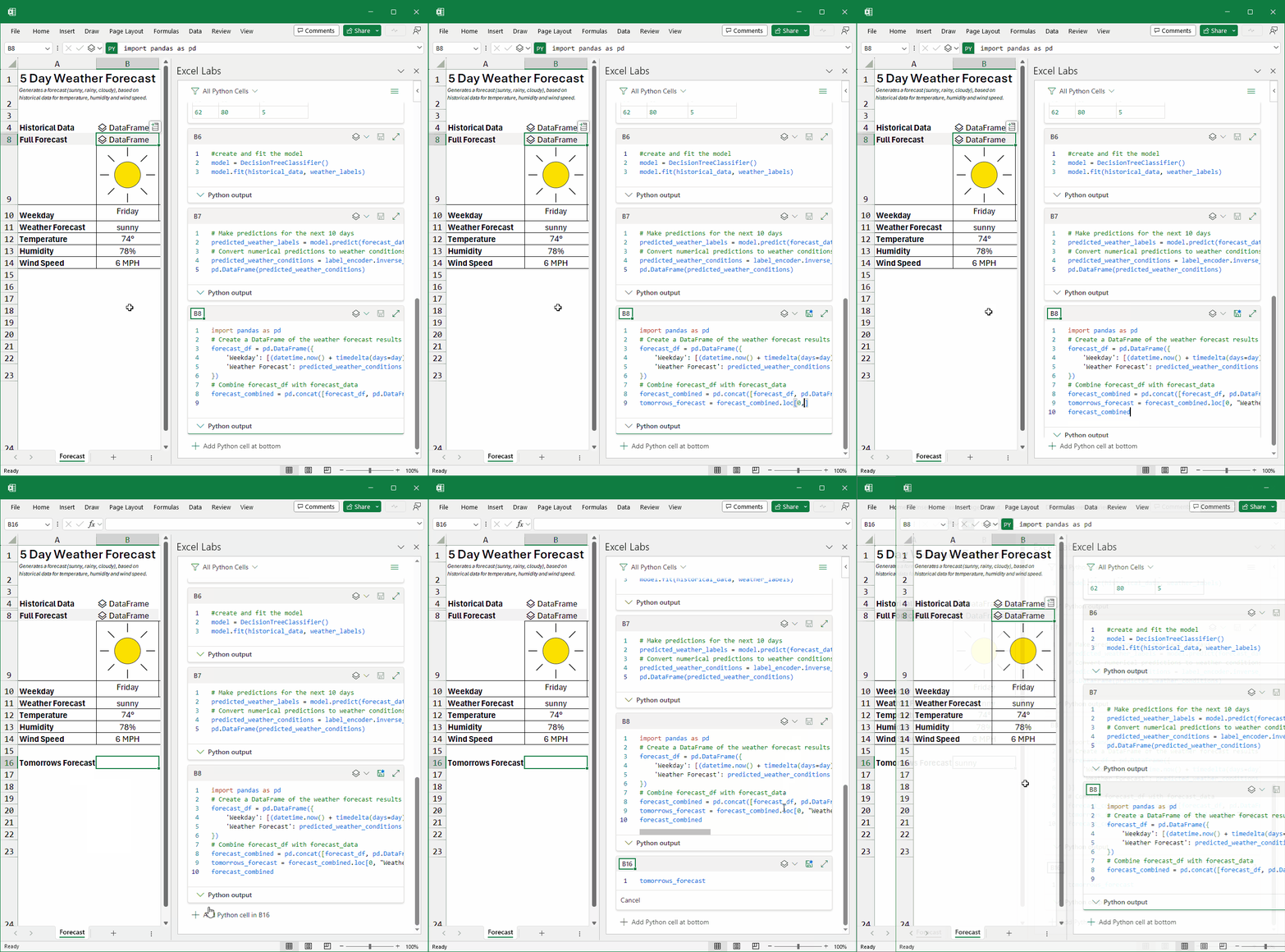
The Python Editor is a great way to enhance your productivity and creativity with Python in Excel. You can use it to write and edit Python formulas that perform complex calculations, manipulate data, create charts, and more. You can also switch between the task pane editor, the cell editor, and the formula bar, depending on your needs and preferences.
How to Get the Python Editor
If you already have the Excel Labs add-in, you can update it to get the latest version that includes the Python Editor.
If you don't have the Excel Labs add-in, you can install it from the Add-ins Store. To do this, go to the Insert tab, click on Get Add-ins, and then search for Excel Labs. Click on Add to install the add-in.
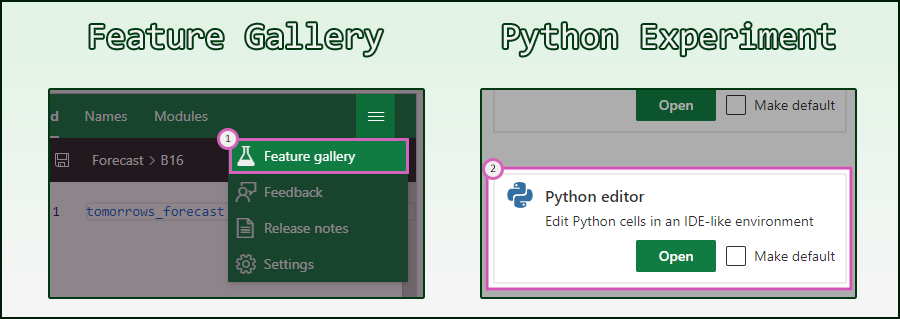
Once you have the Excel Labs add-in, you need to launch the Python Editor.
This can be done by
Access Requirements
Anyone can get Excel Labs today, however, you need to have access to Python in Excel to make use of the Python Editor.
Get started with Python in Excel
Python in Excel is gradually rolling out to users running Beta Channel on Windows. This feature will roll out to Excel for Windows first, starting with build 16.0.16818.20000, and then to the other platforms at a later date.
To use Python in Excel, join the Microsoft 365 Insider Program. Choose the Beta Channel Insider level to get the latest builds of the Excel application.
While in Preview, Python in Excel will be included with your Microsoft 365 subscription. After the Preview, some functionality will be restricted without a paid license. More details will be available before General Availability.
Source: techcommunity.microsoft.com